> For the complete documentation index, see [llms.txt](https://www.osdcloud.com/llms.txt). Markdown versions of documentation pages are available by appending `.md` to page URLs; this page is available as [Markdown](https://www.osdcloud.com/osdcloud-v1/integration/iso-adding-a-wim.md).
# ISO: Adding a WIM
OSD 23.5.23.1+ Updated May 23, 2023
In this example, I am going to show you how to add a WIM to an ISO for deployment with OSDCloud.
## OSDCloud Workspace
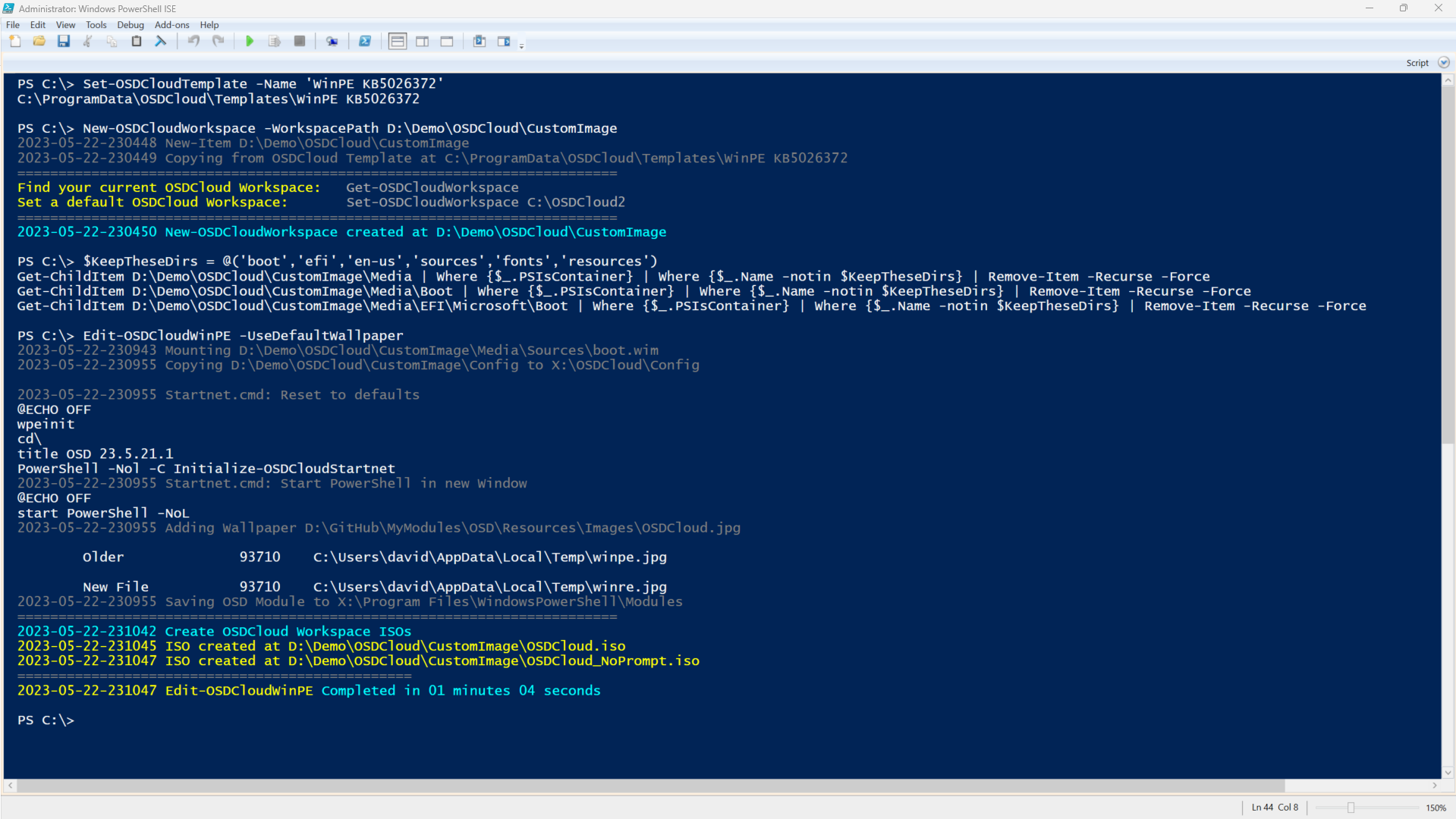
You probably have your own OSDCloud Workspace already configured, but I'm sharing what I'm doing for this demo, so hopefully you'll learn something new
{% code overflow="wrap" lineNumbers="true" fullWidth="true" %}
```powershell
#Set your OSDCloud Template
Set-OSDCloudTemplate -Name 'WinPE KB5026372'
#Create a new OSDCloud Workspace
New-OSDCloudWorkspace -WorkspacePath D:\Demo\OSDCloud\CustomImage
#Cleanup OSDCloud Workspace Media
$KeepTheseDirs = @('boot','efi','en-us','sources','fonts','resources')
Get-ChildItem D:\Demo\OSDCloud\CustomImage\Media | Where {$_.PSIsContainer} | Where {$_.Name -notin $KeepTheseDirs} | Remove-Item -Recurse -Force
Get-ChildItem D:\Demo\OSDCloud\CustomImage\Media\Boot | Where {$_.PSIsContainer} | Where {$_.Name -notin $KeepTheseDirs} | Remove-Item -Recurse -Force
Get-ChildItem D:\Demo\OSDCloud\CustomImage\Media\EFI\Microsoft\Boot | Where {$_.PSIsContainer} | Where {$_.Name -notin $KeepTheseDirs} | Remove-Item -Recurse -Force
#Edit WinPE and rebuild ISO
Edit-OSDCloudWinPE -UseDefaultWallpaper
```
{% endcode %}
## Windows Image
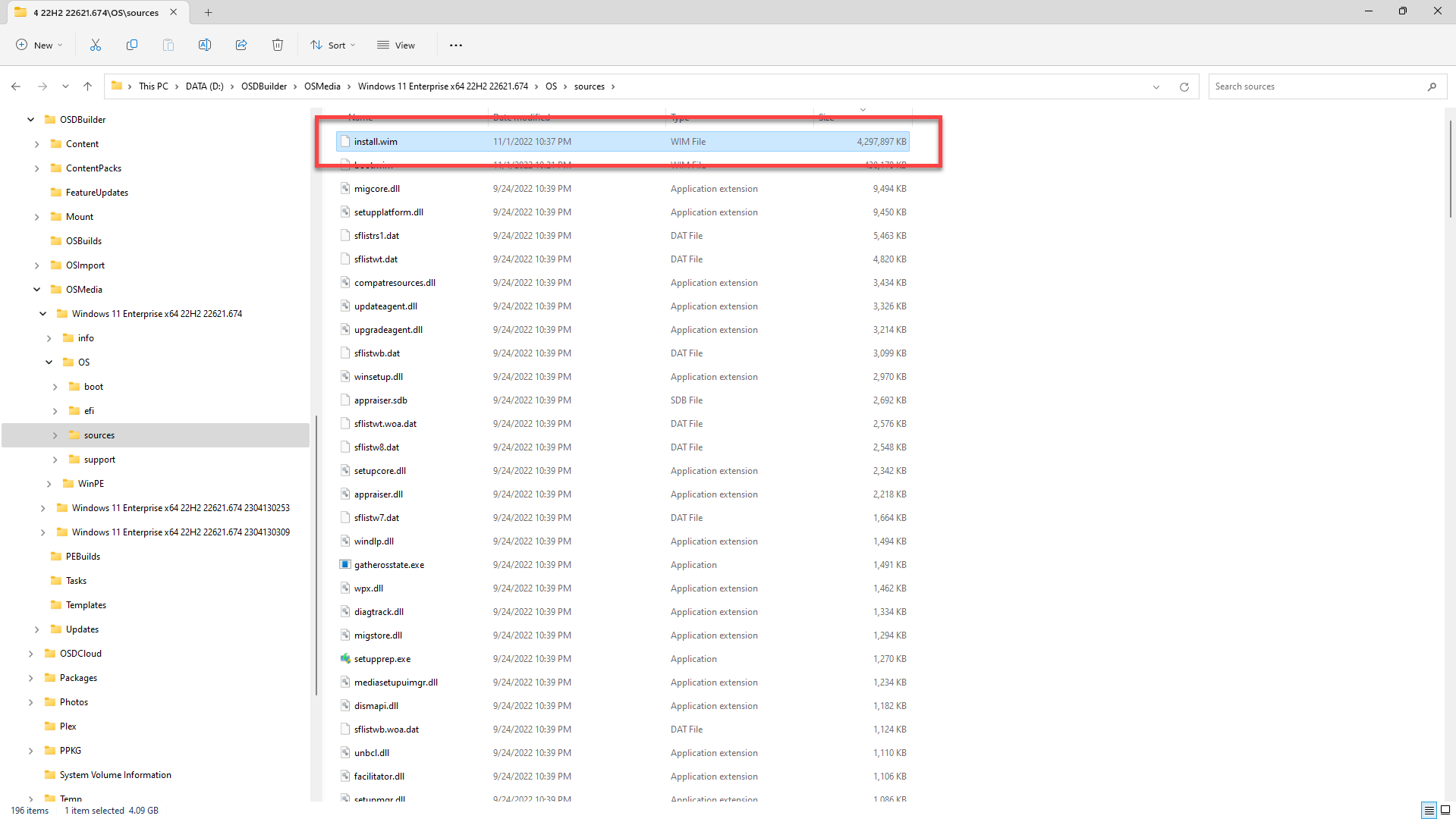
For my Windows Image, I'm just going to grab one from OSDBuilder. In this case I am going to just Copy as Path
I can now copy the Windows Image to my OSDCloud Workspace and rebuild the ISO
{% code overflow="wrap" lineNumbers="true" fullWidth="true" %}
```powershell
$WindowsImage = "D:\OSDBuilder\OSMedia\Windows 11 Enterprise x64 22H2 22621.674\OS\sources\install.wim"
$Destination = "$(Get-OSDCloudWorkspace)\Media\OSDCloud\OS"
New-Item -Path $Destination -ItemType Directory -Force
Copy-Item -Path $WindowsImage -Destination "$Destination\CustomImage.wim" -Force
New-OSDCloudISO
```
{% endcode %}
## WinPE
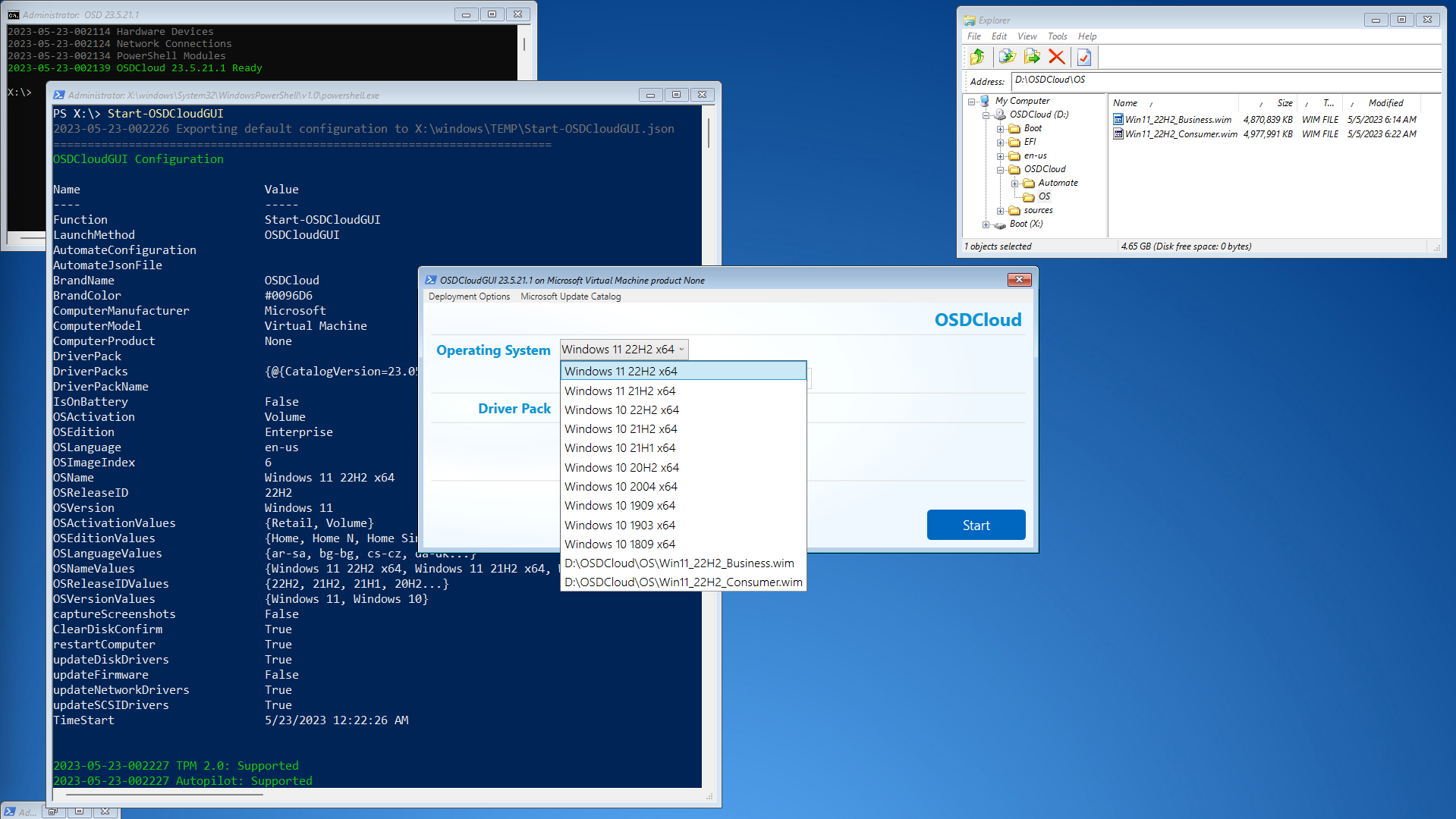
Now when using OSDCloudGUI, WIM files that exist on any drive letter in the **`:\OSDCloud\OS`** path are added to the Operating System combobox. In the screenshots below I have two WIM files present
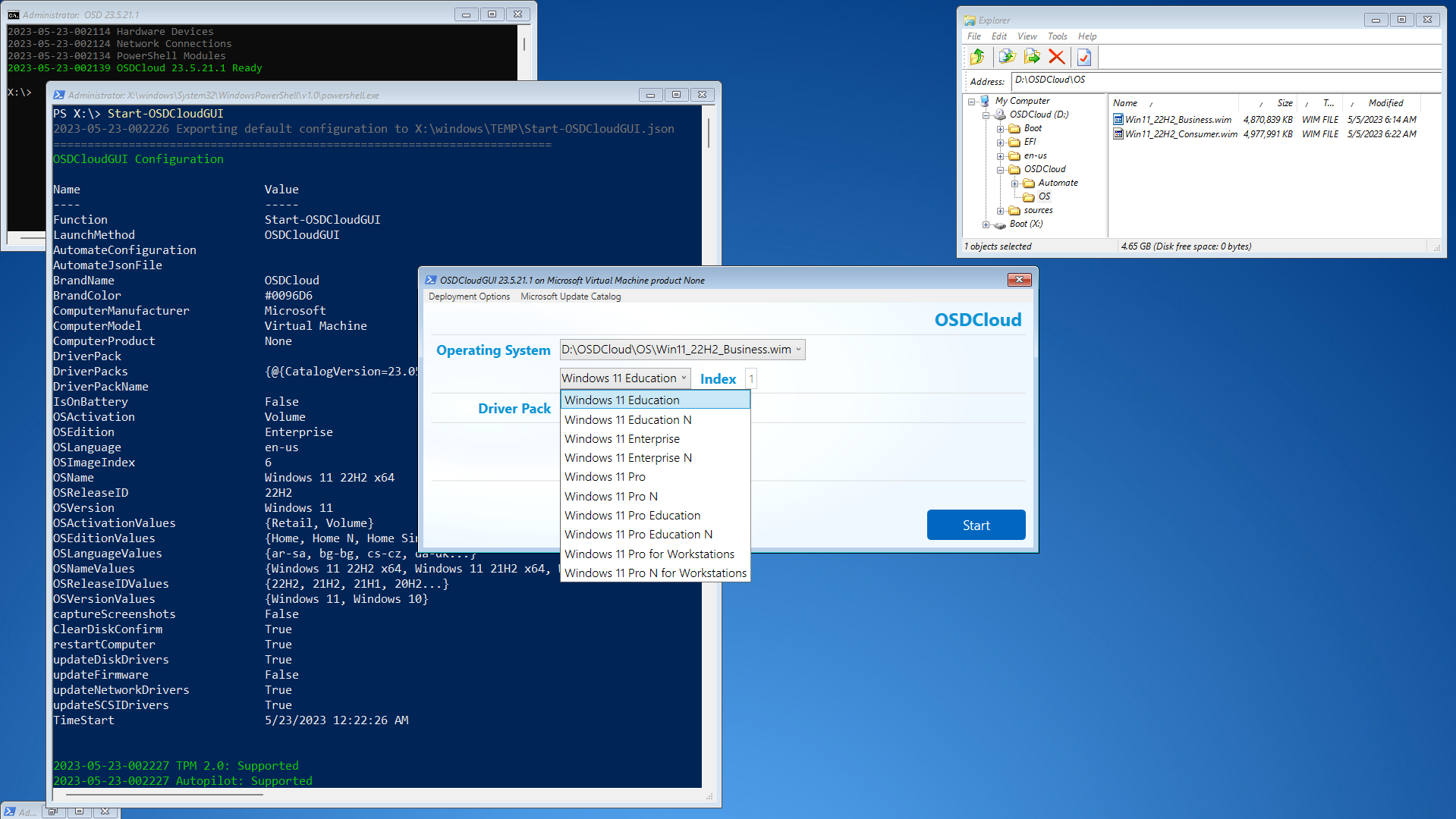
Once a WIM file has been selected in the Operating System combobox, the ImageName for each Index is populated in the secondary combobox
---
# Agent Instructions
This documentation is published with GitBook. GitBook is the documentation platform designed so that both humans and AI agents can read, navigate, and reason over technical content effectively. Learn more at gitbook.com.
## Querying This Documentation
If you need additional information that is not directly available in this page, you can query the documentation dynamically by asking a question.
Perform an HTTP GET request on the current page URL with the `ask` query parameter, and the optional `goal` query parameter:
```
GET https://www.osdcloud.com/osdcloud-v1/integration/iso-adding-a-wim.md?ask=&goal=
```
`ask` is the immediate question: it should be specific, self-contained, and written in natural language.
`goal` is optional and describes the broader end goal you are ultimately trying to accomplish on behalf of the user. GitBook uses it to tailor the answer towards what is most useful for that goal.
The response will contain a direct answer to the question and relevant excerpts and sources from the documentation.
Use this mechanism when the answer is not explicitly present in the current page, you need clarification or additional context, or you want to retrieve related documentation sections.