# MDT: Use OSDCloud DriverPacks in a Task Sequence

## Preinstall Phase

### Modify Inject Drivers step

Modify your Task Sequence to include drivers from the **OSDCloud WinPE x64** selection profile that was created in the [**WinPE Drivers**](https://www.osdcloud.com/osdcloud-v1/integration/mdt-add-osdcloud-winpe-drivers) configuration. This will ensure that you have the minimal Network and Disk Controller drivers needed to startup the Operating System to first boot

<figure><img src="https://344220114-files.gitbook.io/~/files/v0/b/gitbook-x-prod.appspot.com/o/spaces%2F-MVSV22dcsjKDdOxDA6n%2Fuploads%2F3T8a6ooNjbHgzC00dM6T%2Fimage.png?alt=media&#x26;token=5b88acdc-4341-4458-8f21-1c80f3e5cfc2" alt=""><figcaption></figcaption></figure>

## Install Phase

### Add Run Command Line step

Add a **Run Command Line** step to your Task Sequence prior to **Install Operating System** to load the [**OSDCloud Sandbox**](https://www.osdcloud.com/osdcloud-v1/osdcloud-sandbox/sandbox).  This will ensure that you have the latest OSDCloud dependencies in your WinPE Session.  Use the following for the Command line

```
PowerShell -ExecutionPolicy Bypass -Command "Invoke-Expression (Invoke-RestMethod 'sandbox.osdcloud.com')"
```

Make sure you do not 'Continue on error' because if this fails to load, then you will probably not be able to download DriverPacks

<div><figure><img src="https://344220114-files.gitbook.io/~/files/v0/b/gitbook-x-prod.appspot.com/o/spaces%2F-MVSV22dcsjKDdOxDA6n%2Fuploads%2F0swEzmbfnGxtPPvFSmzU%2Fimage.png?alt=media&#x26;token=8bdcaca8-87b0-44b2-979d-4a621a58a873" alt=""><figcaption></figcaption></figure> <figure><img src="https://344220114-files.gitbook.io/~/files/v0/b/gitbook-x-prod.appspot.com/o/spaces%2F-MVSV22dcsjKDdOxDA6n%2Fuploads%2F7Axpy1Ryqw8bY9haJZpG%2Fimage.png?alt=media&#x26;token=c9e07bb4-63f4-4e45-98eb-4b542f2e5cd8" alt=""><figcaption></figcaption></figure></div>

## Postinstall Phase

### Add Run Command Line step

After Configure, add a Run Command Line step called **OSDCloud DriverPackMDT**.  Use the following for the Command line

```
cmd.exe /c start /wait PowerShell -ExecutionPolicy Bypass -Command Invoke-OSDCloudDriverPackMDT
```

Start in should contain the following path

```
%OSDisk%\Windows\System32
```

Options should include **Continue on error**

<div><figure><img src="https://344220114-files.gitbook.io/~/files/v0/b/gitbook-x-prod.appspot.com/o/spaces%2F-MVSV22dcsjKDdOxDA6n%2Fuploads%2FjTeNIGBRLjqcmHEnJja1%2Fimage.png?alt=media&#x26;token=3fbbfbd1-1f44-4999-aebe-e58f8646cbce" alt=""><figcaption><p>Run Command Line</p></figcaption></figure> <figure><img src="https://344220114-files.gitbook.io/~/files/v0/b/gitbook-x-prod.appspot.com/o/spaces%2F-MVSV22dcsjKDdOxDA6n%2Fuploads%2FDv3dFVYVUKdlMep2fqT0%2Fimage.png?alt=media&#x26;token=6455bac2-f804-4e58-8b29-0da77a0341c4" alt=""><figcaption><p><strong>Continue on error</strong></p></figcaption></figure></div>

### OSDCloud DriverPackMDT Step for VM Testing

If you want to test downloading and applying a DriverPack in a Virtual Machine, modify the above step to specify a Manufacturer and Product.  I select a Lenovo as the DriverPack as HP and Dell do not show progress in the Specialize phase during the DriverPack expansion

```
cmd.exe /c start /wait PowerShell -ExecutionPolicy Bypass -Command Invoke-OSDCloudDriverPackMDT -Manufacturer Lenovo -Product 21DC
```

## Test a Deployment

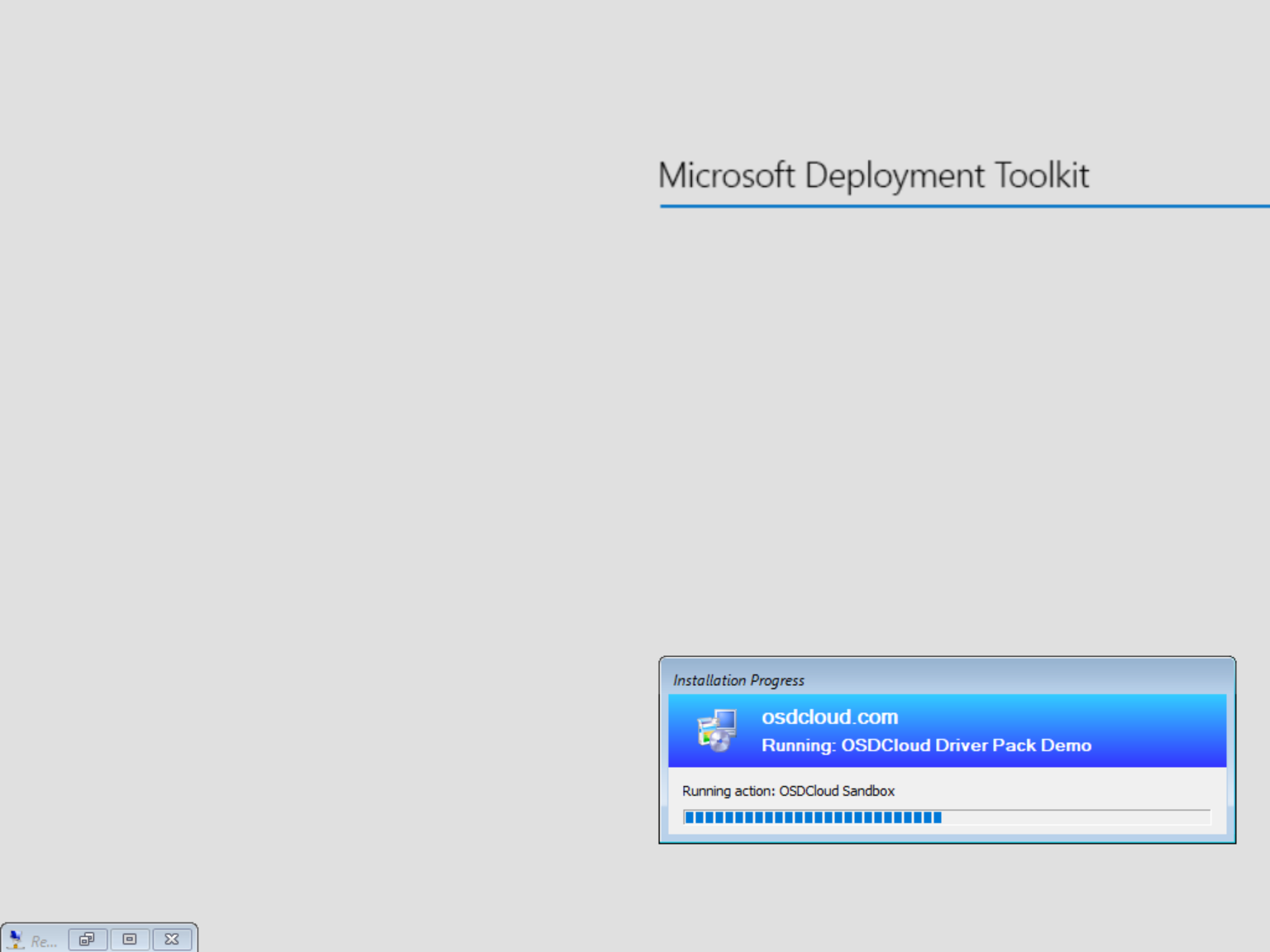
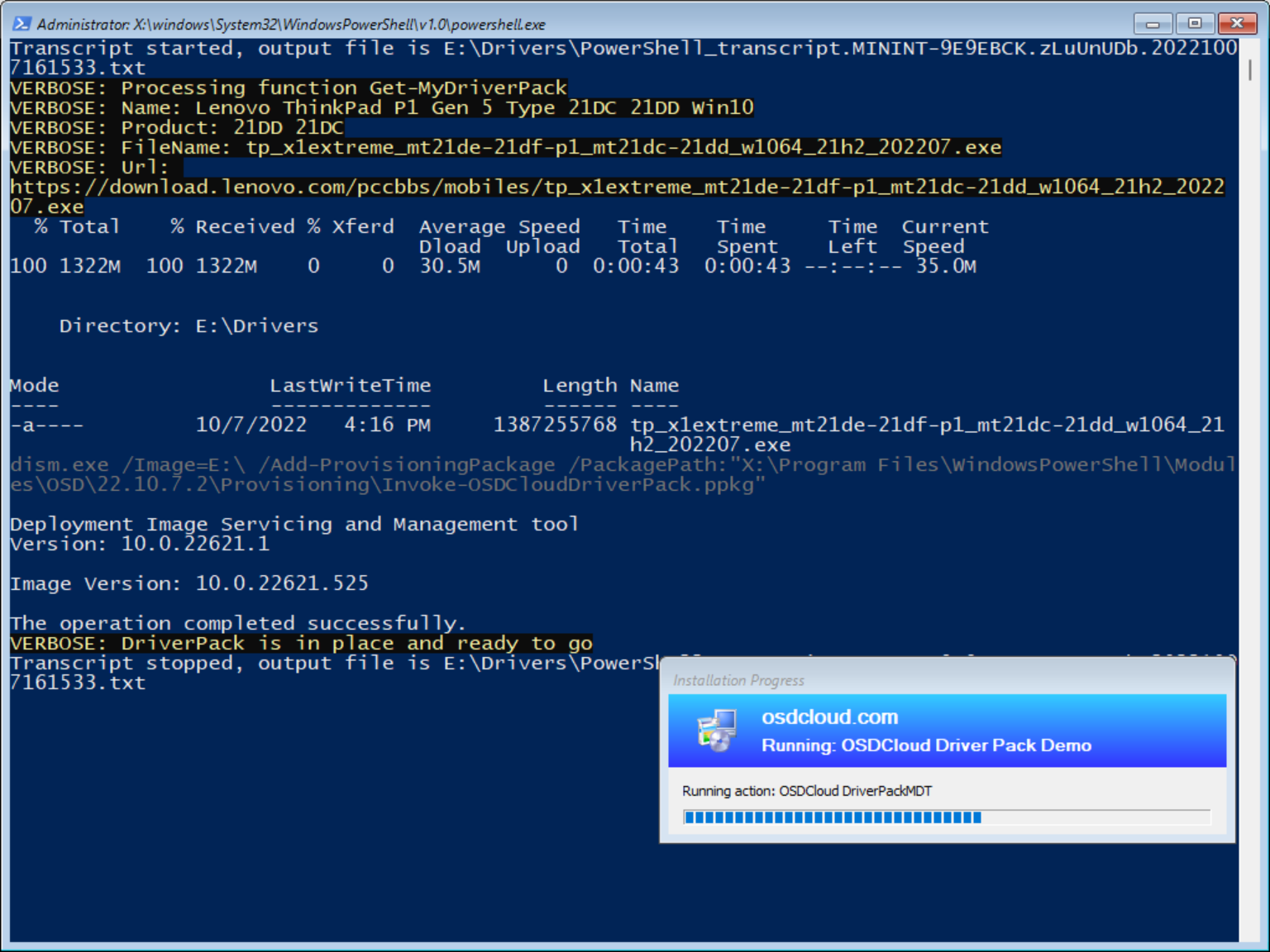
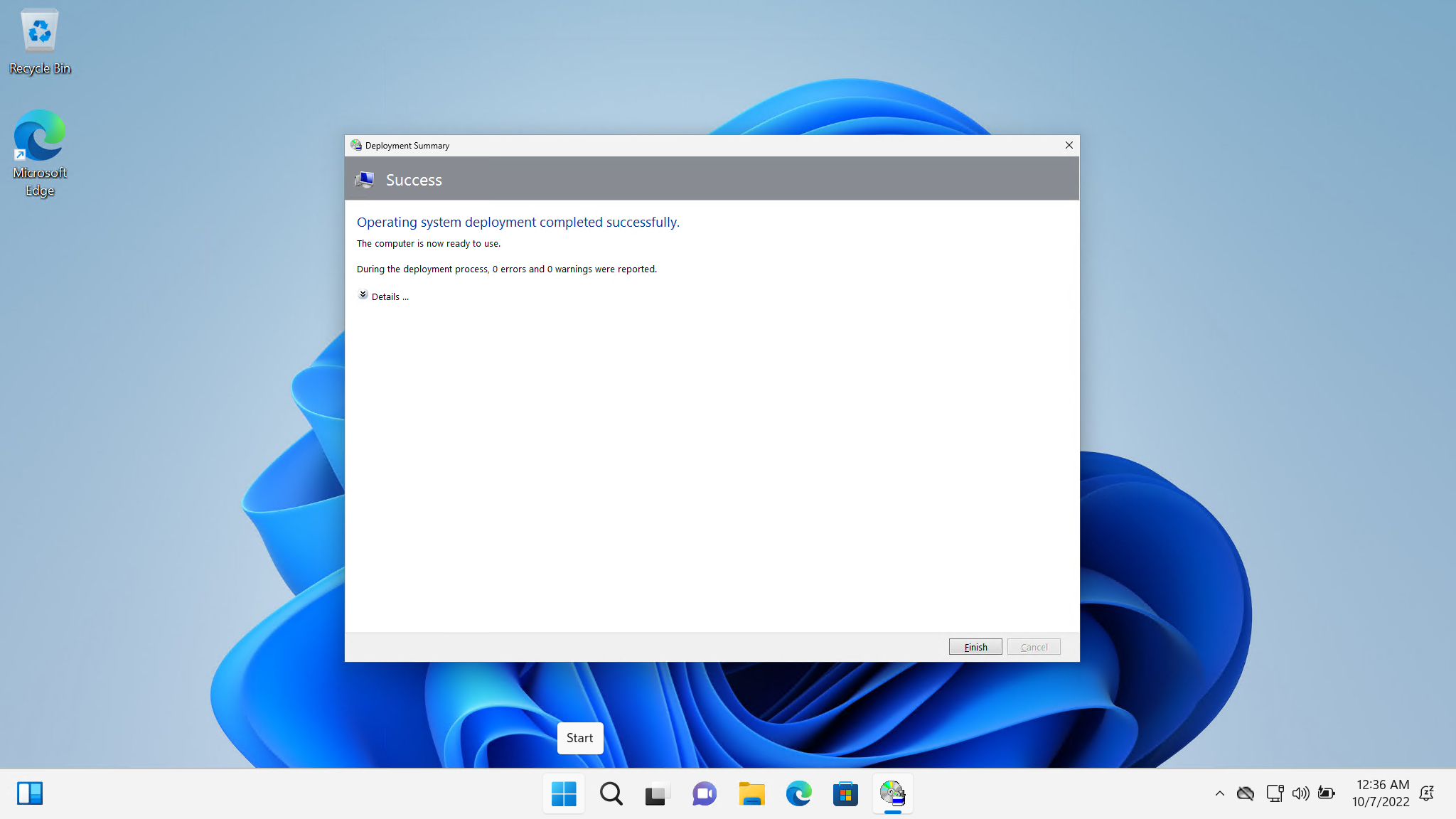
The following screenshots are from a Virtual Machine emulating a Lenovo P1 Gen 5 device

<figure><img src="https://344220114-files.gitbook.io/~/files/v0/b/gitbook-x-prod.appspot.com/o/spaces%2F-MVSV22dcsjKDdOxDA6n%2Fuploads%2Fd5PrNYmT2kV31JdeINsP%2Fimage.png?alt=media&#x26;token=c93b9234-cb9b-40fd-acaa-7fcc5f60a0cb" alt=""><figcaption></figcaption></figure>

<figure><img src="https://344220114-files.gitbook.io/~/files/v0/b/gitbook-x-prod.appspot.com/o/spaces%2F-MVSV22dcsjKDdOxDA6n%2Fuploads%2F7TpkYwKHOYr0HBeFHYUm%2Fimage.png?alt=media&#x26;token=400003ed-4229-48ab-8384-6f7eea3e3acd" alt=""><figcaption></figcaption></figure>

<figure><img src="https://344220114-files.gitbook.io/~/files/v0/b/gitbook-x-prod.appspot.com/o/spaces%2F-MVSV22dcsjKDdOxDA6n%2Fuploads%2FjHZ8VpnRZRSWD6k2ARbi%2Fimage.png?alt=media&#x26;token=7b2aaaad-0085-4750-821b-9ae454569642" alt=""><figcaption></figcaption></figure>

<figure><img src="https://344220114-files.gitbook.io/~/files/v0/b/gitbook-x-prod.appspot.com/o/spaces%2F-MVSV22dcsjKDdOxDA6n%2Fuploads%2F1OObwSAa8NzdVJwJrOqT%2Fimage.png?alt=media&#x26;token=e4c80070-145a-4314-a11d-129d15cb0fc8" alt=""><figcaption></figcaption></figure>

<figure><img src="https://344220114-files.gitbook.io/~/files/v0/b/gitbook-x-prod.appspot.com/o/spaces%2F-MVSV22dcsjKDdOxDA6n%2Fuploads%2Faoim80Gjs4IydGi18qzQ%2Fimage.png?alt=media&#x26;token=a4157728-ebcb-41d8-9659-1d2de898b3eb" alt=""><figcaption></figcaption></figure>

<figure><img src="https://344220114-files.gitbook.io/~/files/v0/b/gitbook-x-prod.appspot.com/o/spaces%2F-MVSV22dcsjKDdOxDA6n%2Fuploads%2Fj7JVfPVtLvLOdGD3oMbF%2Fimage.png?alt=media&#x26;token=93c3f680-602e-40fd-8084-7b1102ba0b36" alt=""><figcaption></figcaption></figure>

<figure><img src="https://344220114-files.gitbook.io/~/files/v0/b/gitbook-x-prod.appspot.com/o/spaces%2F-MVSV22dcsjKDdOxDA6n%2Fuploads%2Fc5QidSUN8lJ5myInXmVh%2Fimage.png?alt=media&#x26;token=e31aa37a-69db-4823-81f6-0bb17f93242d" alt=""><figcaption></figcaption></figure>

<figure><img src="https://344220114-files.gitbook.io/~/files/v0/b/gitbook-x-prod.appspot.com/o/spaces%2F-MVSV22dcsjKDdOxDA6n%2Fuploads%2FTHaQ0AC8rPQEcBmTbMf3%2Fimage.png?alt=media&#x26;token=b1c0cced-aa8c-4e9f-8b6f-f97792f64f0d" alt=""><figcaption><p>This part may take 5-10 minutes.  Most DriverPacks will not show any progress</p></figcaption></figure>

<figure><img src="https://344220114-files.gitbook.io/~/files/v0/b/gitbook-x-prod.appspot.com/o/spaces%2F-MVSV22dcsjKDdOxDA6n%2Fuploads%2FnbChsM59FUDUF6UuPTSJ%2Fimage.png?alt=media&#x26;token=74ba5207-9bab-4161-b59c-b5dac8c9c8d9" alt=""><figcaption><p>Lenovo is the exception where you will see the expand of the DriverPack</p></figcaption></figure>

<figure><img src="https://344220114-files.gitbook.io/~/files/v0/b/gitbook-x-prod.appspot.com/o/spaces%2F-MVSV22dcsjKDdOxDA6n%2Fuploads%2FtxtNEDsawcmKO3A8YqW9%2Fimage.png?alt=media&#x26;token=ecb098fa-991d-4f55-8cac-d7309f36c8fe" alt=""><figcaption><p>Complete deployment with no errors</p></figcaption></figure>

<figure><img src="https://344220114-files.gitbook.io/~/files/v0/b/gitbook-x-prod.appspot.com/o/spaces%2F-MVSV22dcsjKDdOxDA6n%2Fuploads%2FaGWZbP2STsOiLnAEDO9F%2Fimage.png?alt=media&#x26;token=263ca961-a3a3-4d1a-9891-1f40bd40850c" alt=""><figcaption><p>PPKG DriverPack expand and apply in Specialize will be saved in C:\Windows\debug</p></figcaption></figure>