> For the complete documentation index, see [llms.txt](https://www.osdcloud.com/llms.txt). Markdown versions of documentation pages are available by appending `.md` to page URLs; this page is available as [Markdown](https://www.osdcloud.com/osdcloud-v1/osdcloud-automate/provisioning.md).
# Provisioning
OSD 23.5.23.1+ Updated May 23, 2023
Hopefully you read the how to add your Autopilot configuration. This will be similar. Don't worry if you don't know how to create a Provisioning Package, that will be detailed in the next few pages. This guide will detail how you add a Provisioning Package to your OSDCloud deployment
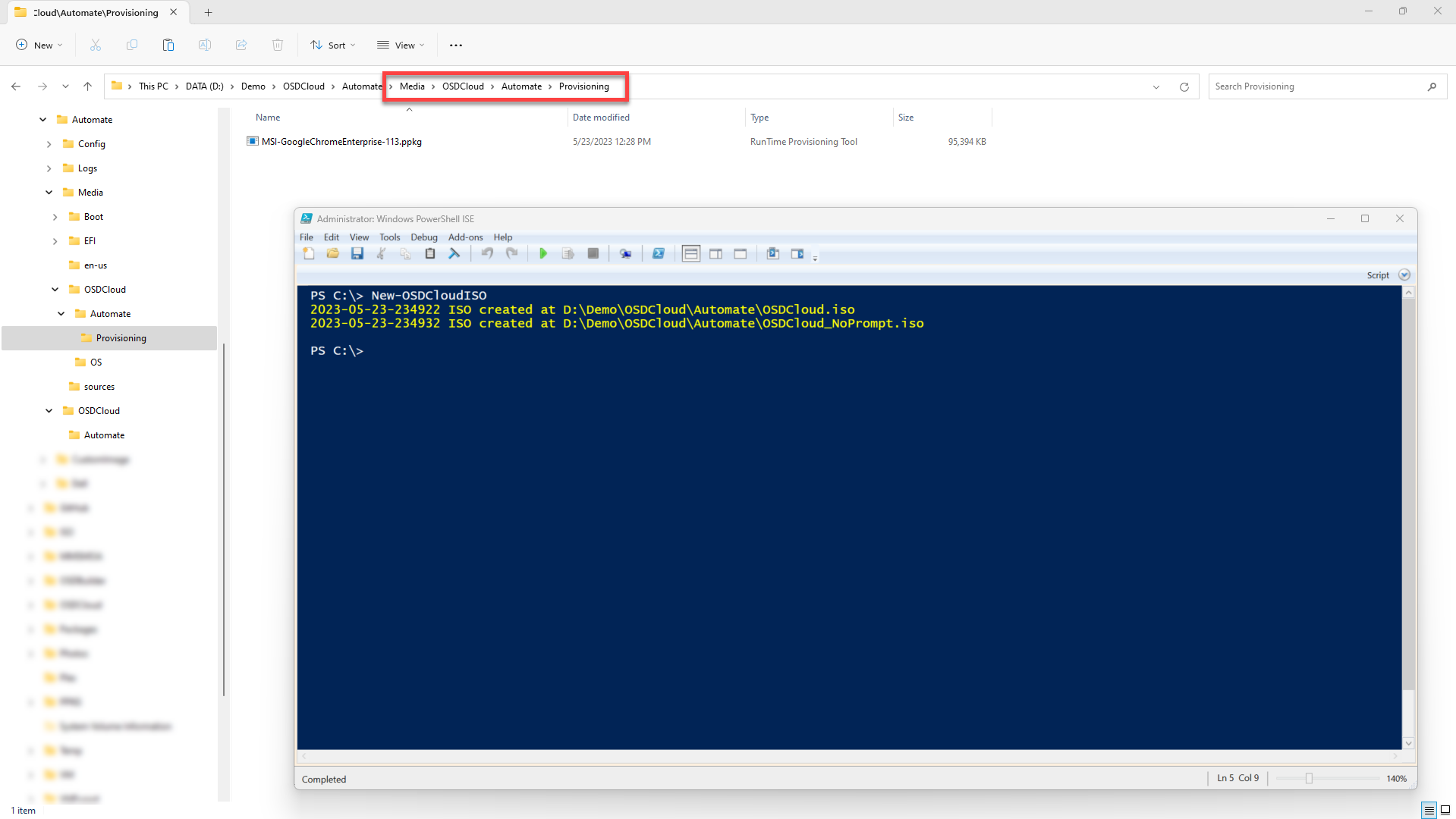
Here are the paths for you to add your Provisioning Package to either ISO Media or USB
```
#Content will be on the ISO or USB Boot Partition
#Ideal for Virtual Machine testing
$(Get-OSDCloudWorkspace)\Media\OSDCloud\Automate\Provisioning
#Content will be on the USB Drive
#Ideal for Physical Machine testing
$(Get-OSDCloudWorkspace)\OSDCloud\Automate\Provisioning
```
I'll start by adding my Google Chrome Enterprise Provisioning Package and updating my OSDCloud ISO
## Boot to WinPE
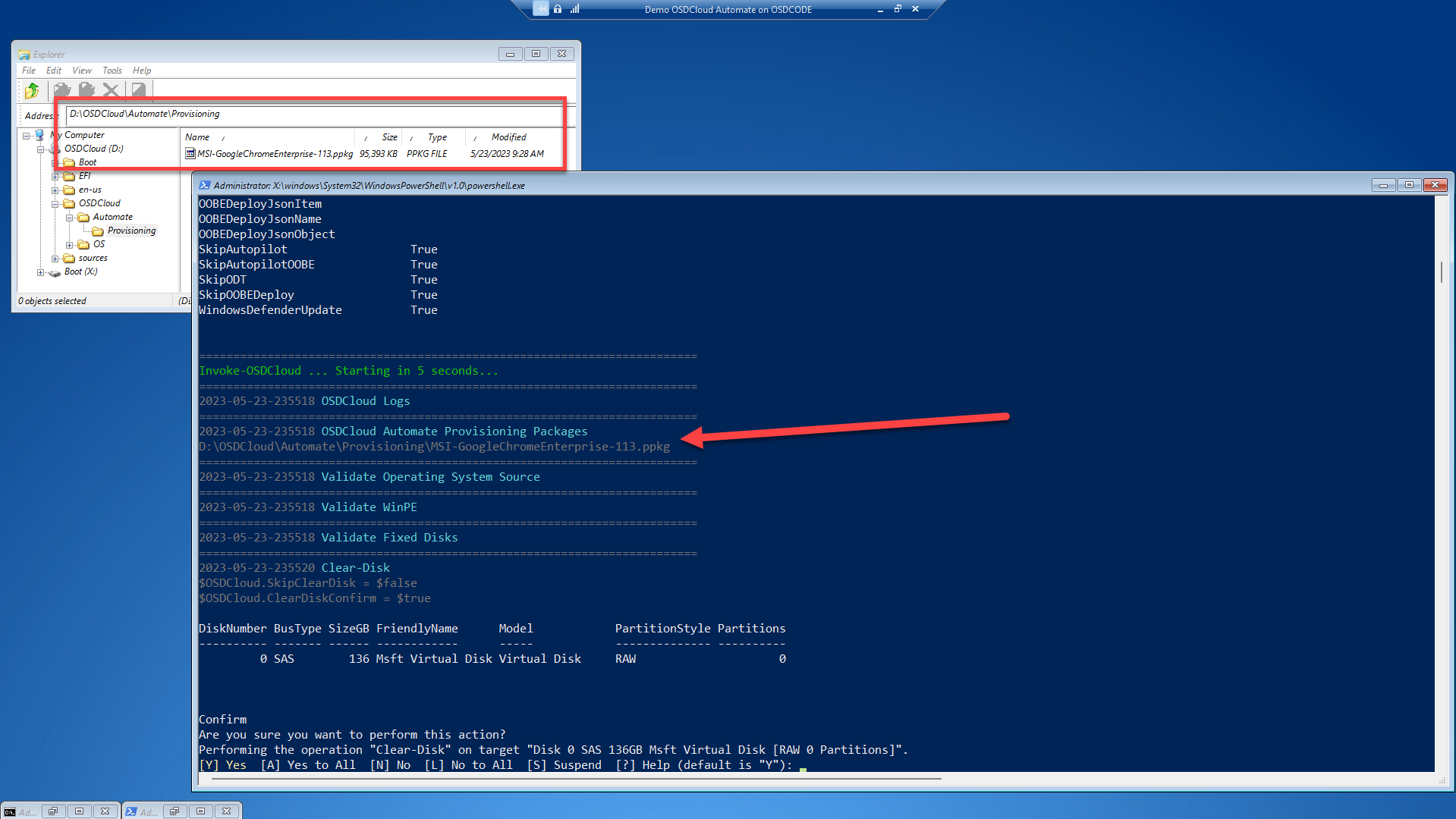
Now I'll boot to a Virtual Machine to this ISO and start an OSDCloud deployment. The screenshot below should help you visualize where the Provisioning Package is on the ISO. Invoke-OSDCloud will pick this up automatically before the disk is wiped. This is for you to validate that your process worked.
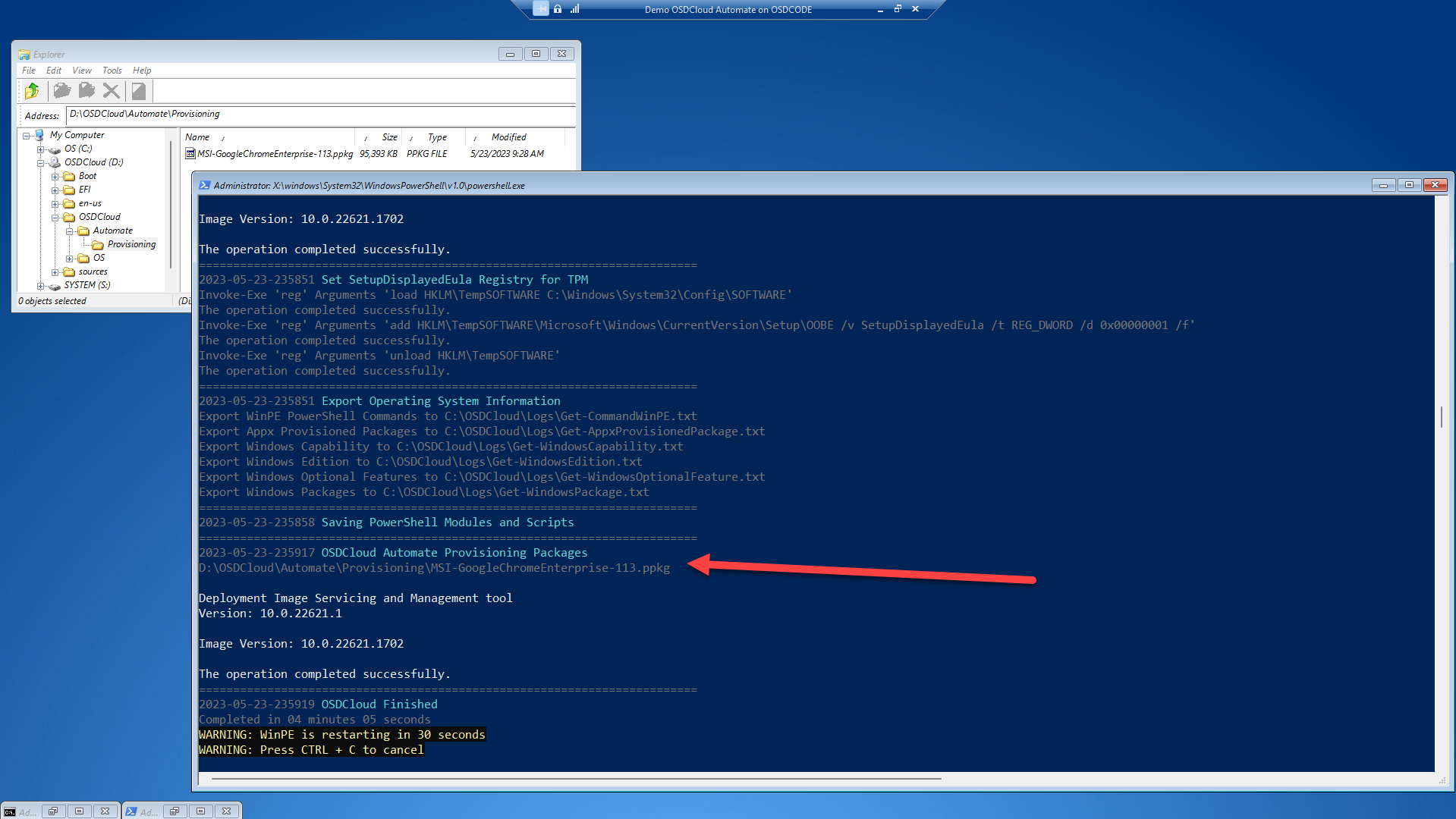
Towards the end of my OSDCloud Deployment, the Provisioning Package will be applied to the offline OS
## First Boot
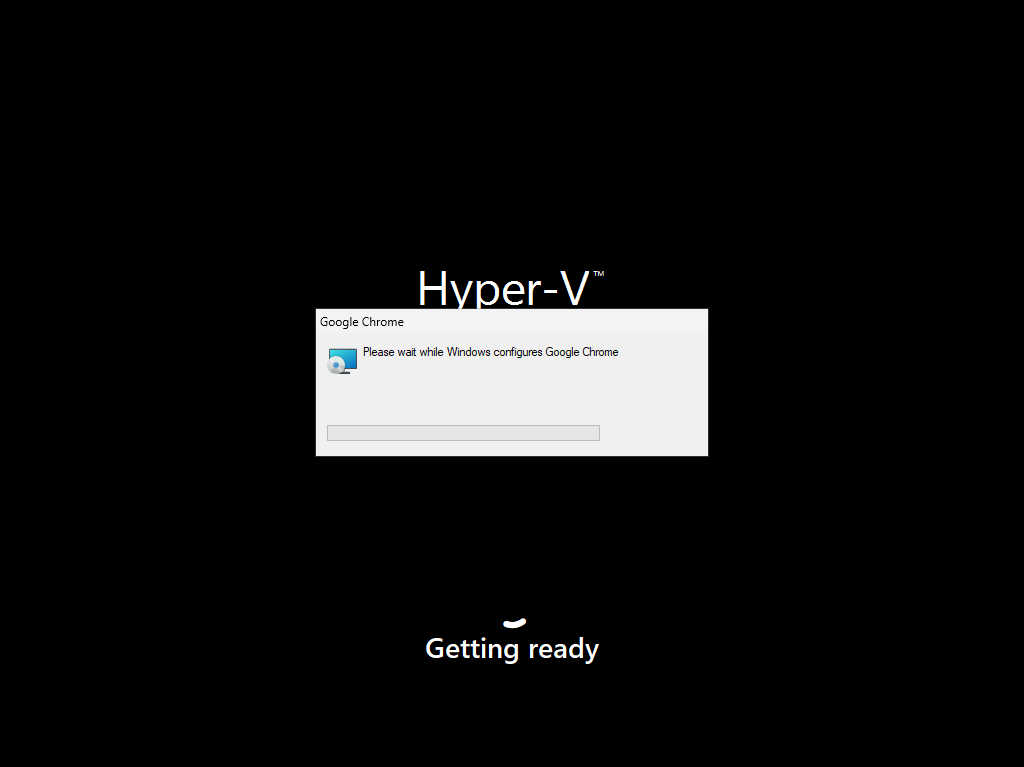
After my computer restarts from WinPE, the Provisioning Package should be applied. You may or may not see any progress during this Phase
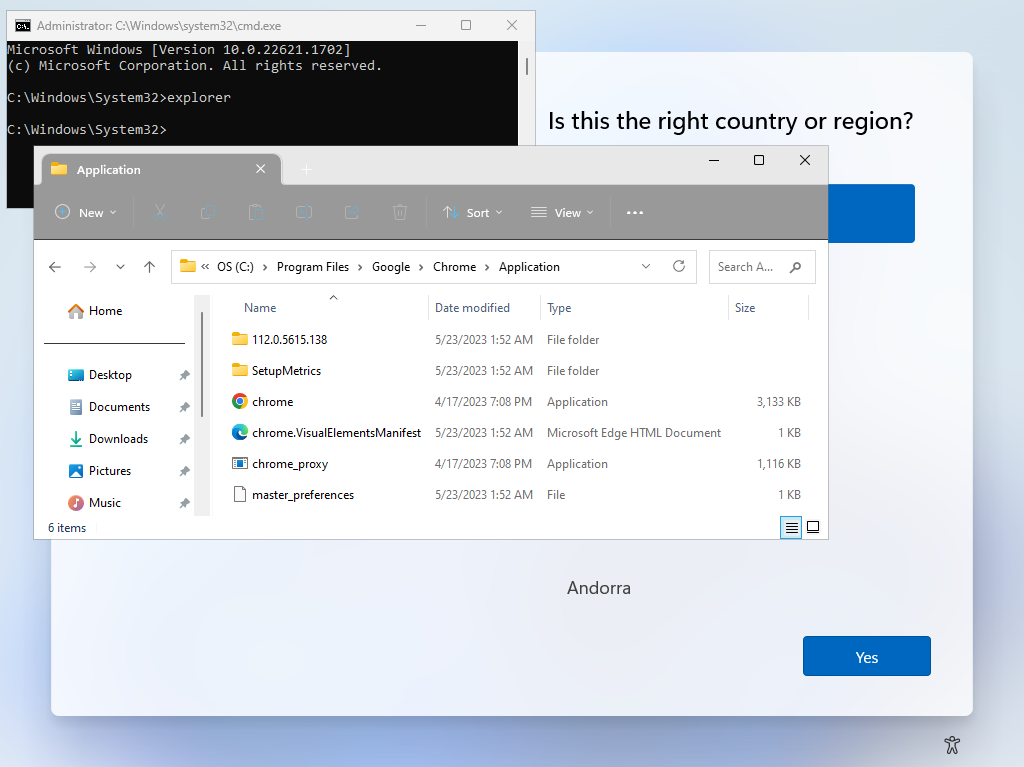
## OOBE
A quick check in OOBE shows that Google Chrome was installed as it is in my Program Files
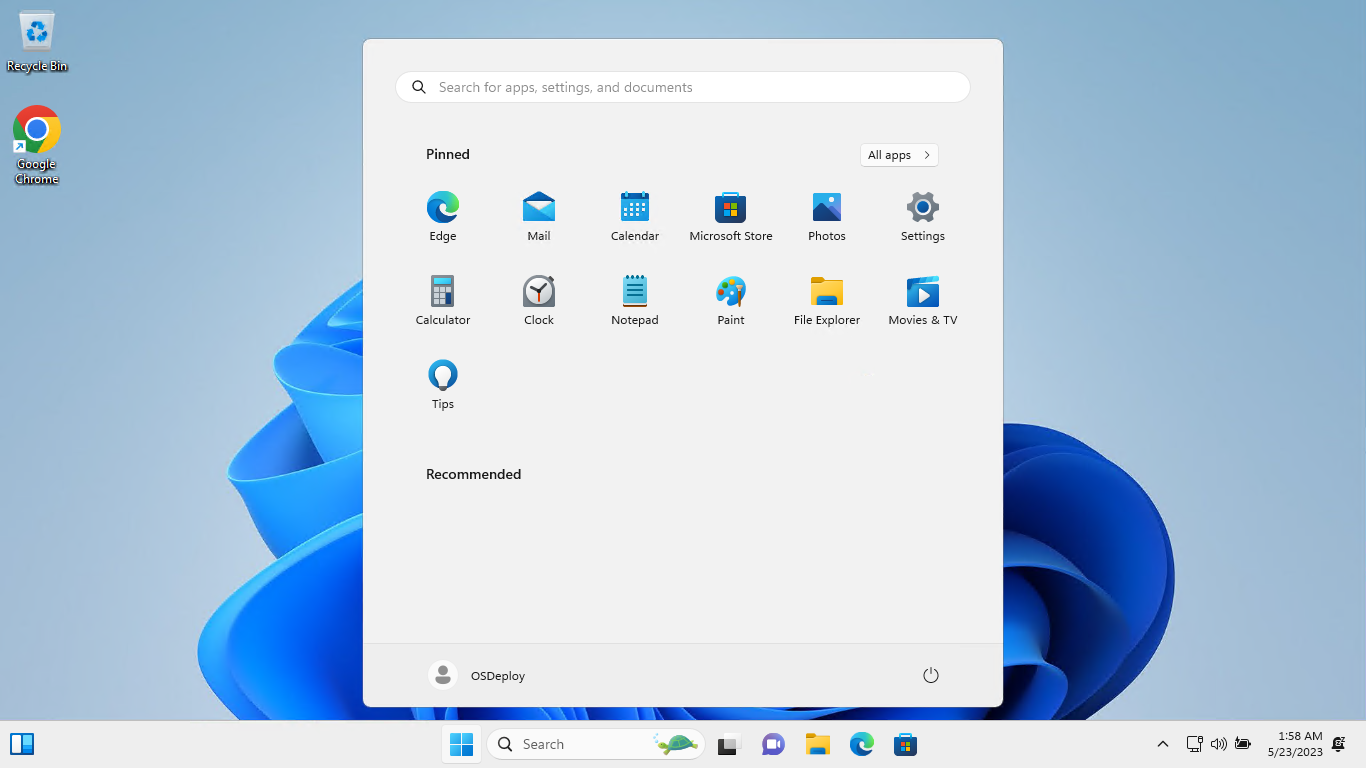
## Windows Desktop
Now when I login for the first time, Google Chrome is already installed and ready to go
---
# Agent Instructions
This documentation is published with GitBook. GitBook is the documentation platform designed so that both humans and AI agents can read, navigate, and reason over technical content effectively. Learn more at gitbook.com.
## Querying This Documentation
If you need additional information that is not directly available in this page, you can query the documentation dynamically by asking a question.
Perform an HTTP GET request on the current page URL with the `ask` query parameter, and the optional `goal` query parameter:
```
GET https://www.osdcloud.com/osdcloud-v1/osdcloud-automate/provisioning.md?ask=&goal=
```
`ask` is the immediate question: it should be specific, self-contained, and written in natural language.
`goal` is optional and describes the broader end goal you are ultimately trying to accomplish on behalf of the user. GitBook uses it to tailor the answer towards what is most useful for that goal.
The response will contain a direct answer to the question and relevant excerpts and sources from the documentation.
Use this mechanism when the answer is not explicitly present in the current page, you need clarification or additional context, or you want to retrieve related documentation sections.