# PowerShell Script PPKG

In this example, I'm going to detail how to wrap a PowerShell script in a Provisioning Package.  The best example I can use is the Provisioning Package that I created to expand Driver Packs in First Boot.

## PowerShell Script

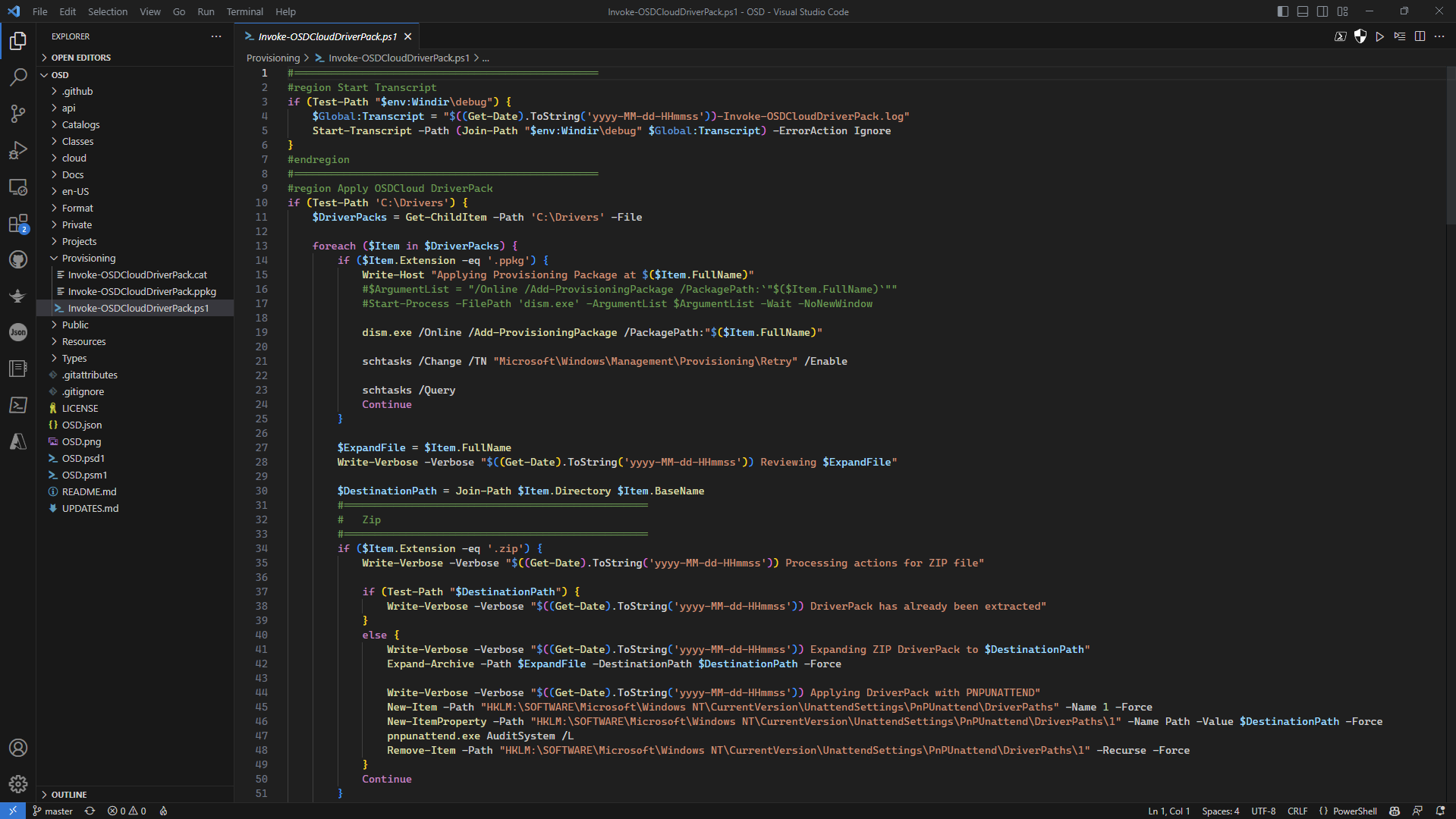
First you need to make sure you have a standalone PowerShell Script that does not require interaction as Provisioning Packages won't allow that.  Here's my script that is saved in a PS1 file

<figure><img src="/files/TPszu8pKSxIGxASJ8m4L" alt=""><figcaption></figcaption></figure>

## Windows Configuration Designer

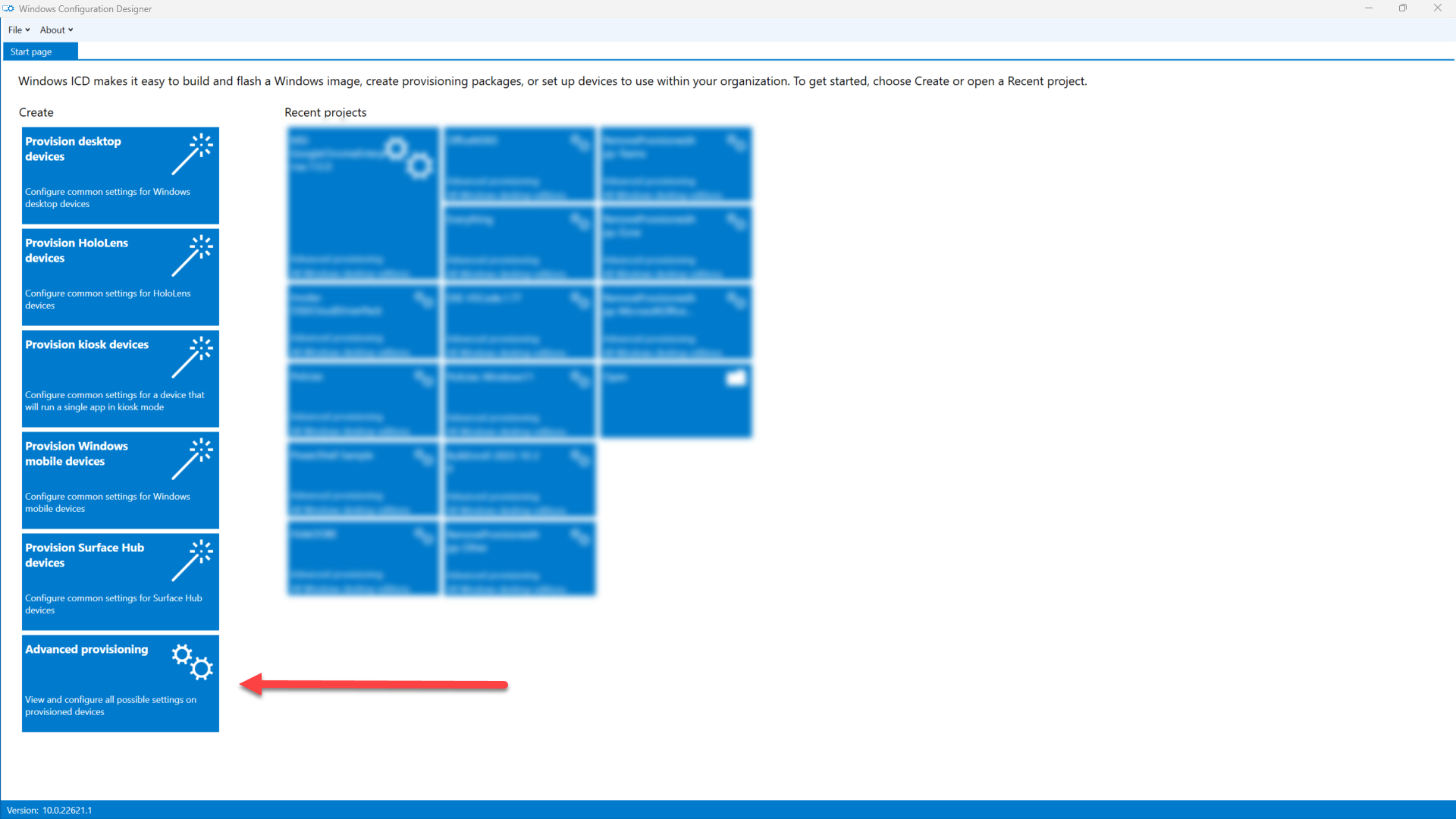
Open Windows Configuration Designer and select Advanced Provisioning

<figure><img src="/files/LwHqF1BVwwqVZBV2cRBh" alt=""><figcaption><p>Advanced provisioning</p></figcaption></figure>

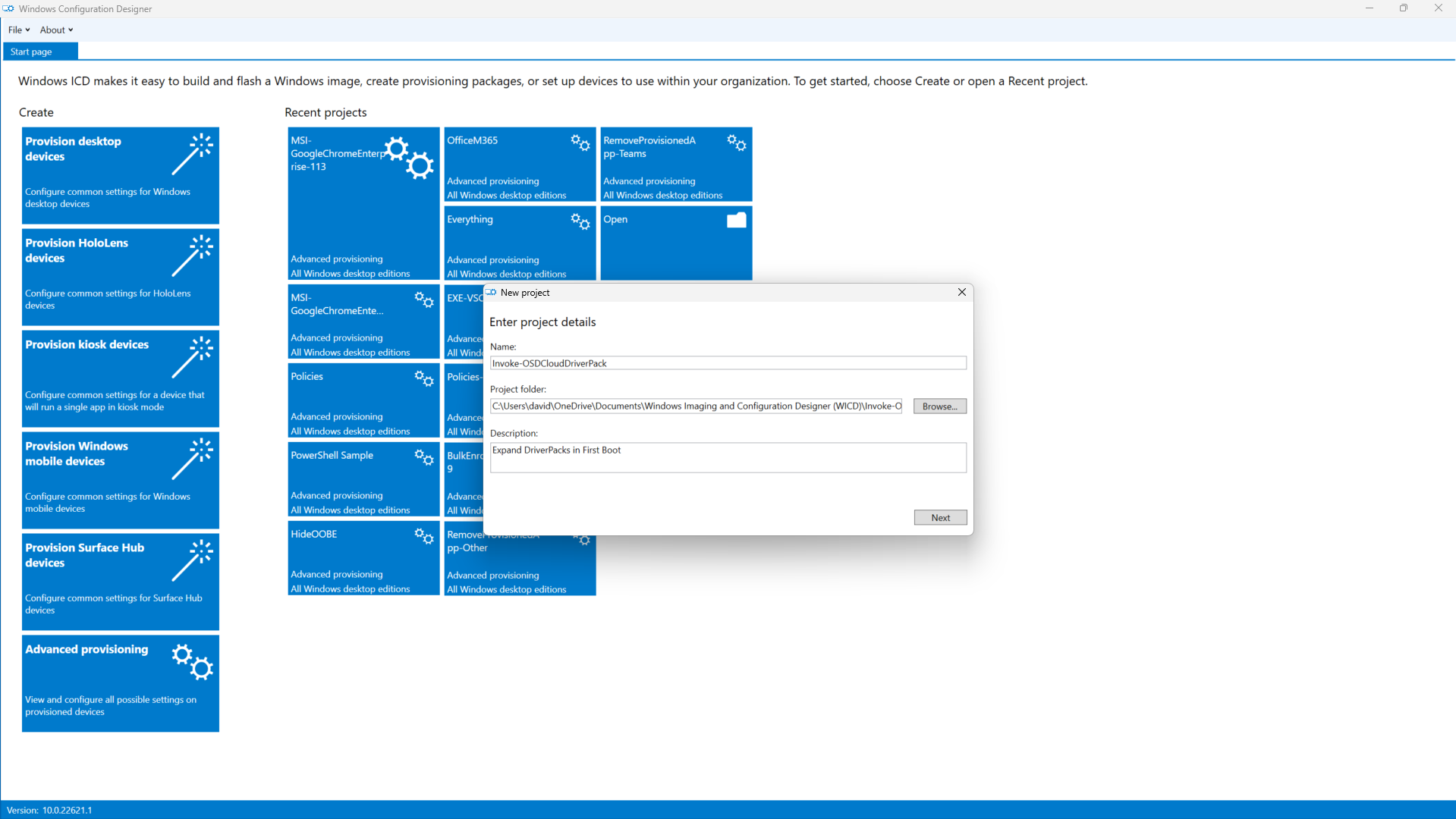
Complete the details for your project and press Next

<figure><img src="/files/iDcXb6lAngh4COjKCOKK" alt=""><figcaption><p>(1) Enter project details (2) Press Next</p></figcaption></figure>

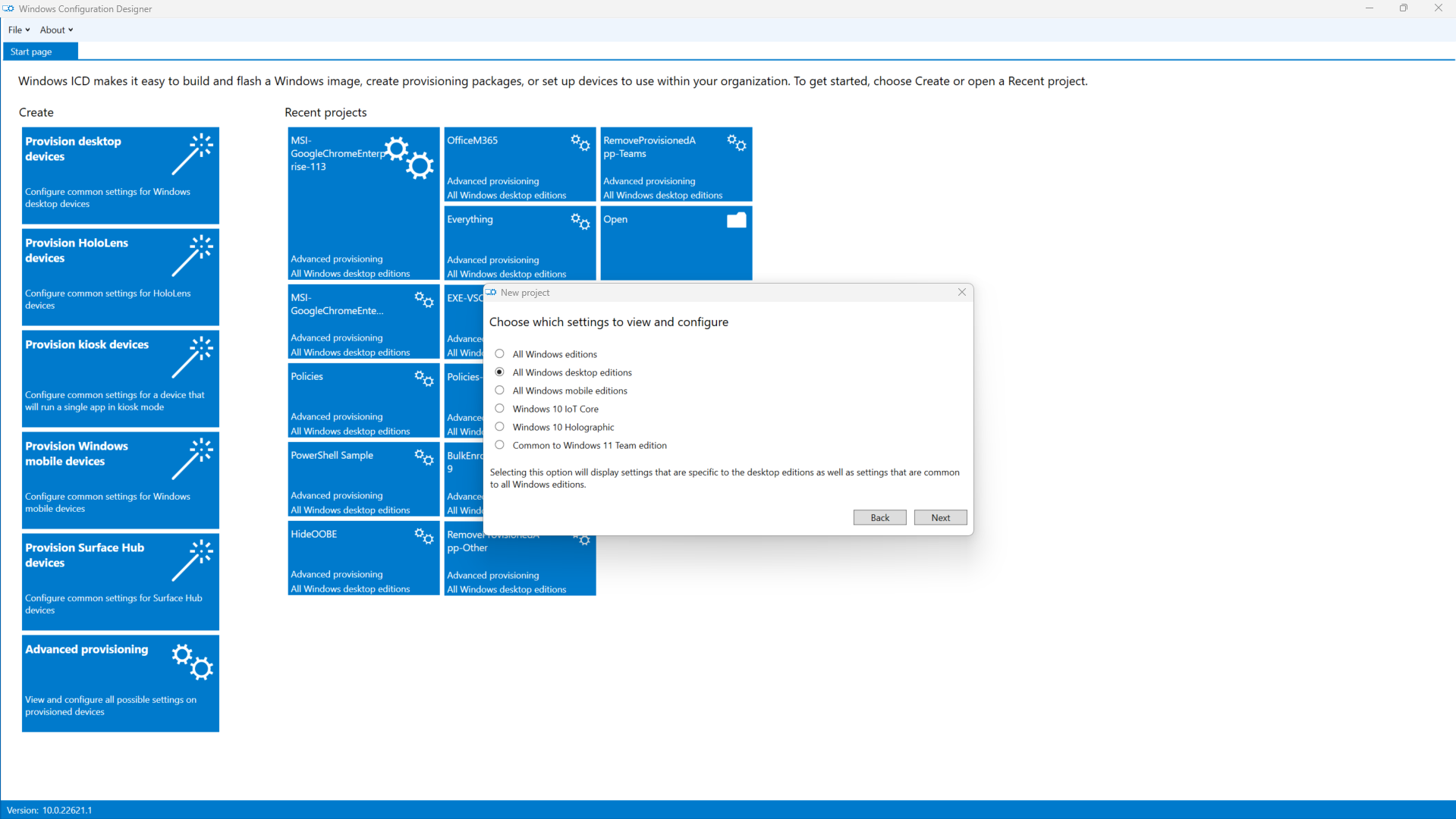
Select All Windows desktop editions and press Next

<figure><img src="/files/iuR5q9rumrnLtBuFBiRl" alt=""><figcaption><p>(1) All Windows desktop editions (2) Press Next</p></figcaption></figure>

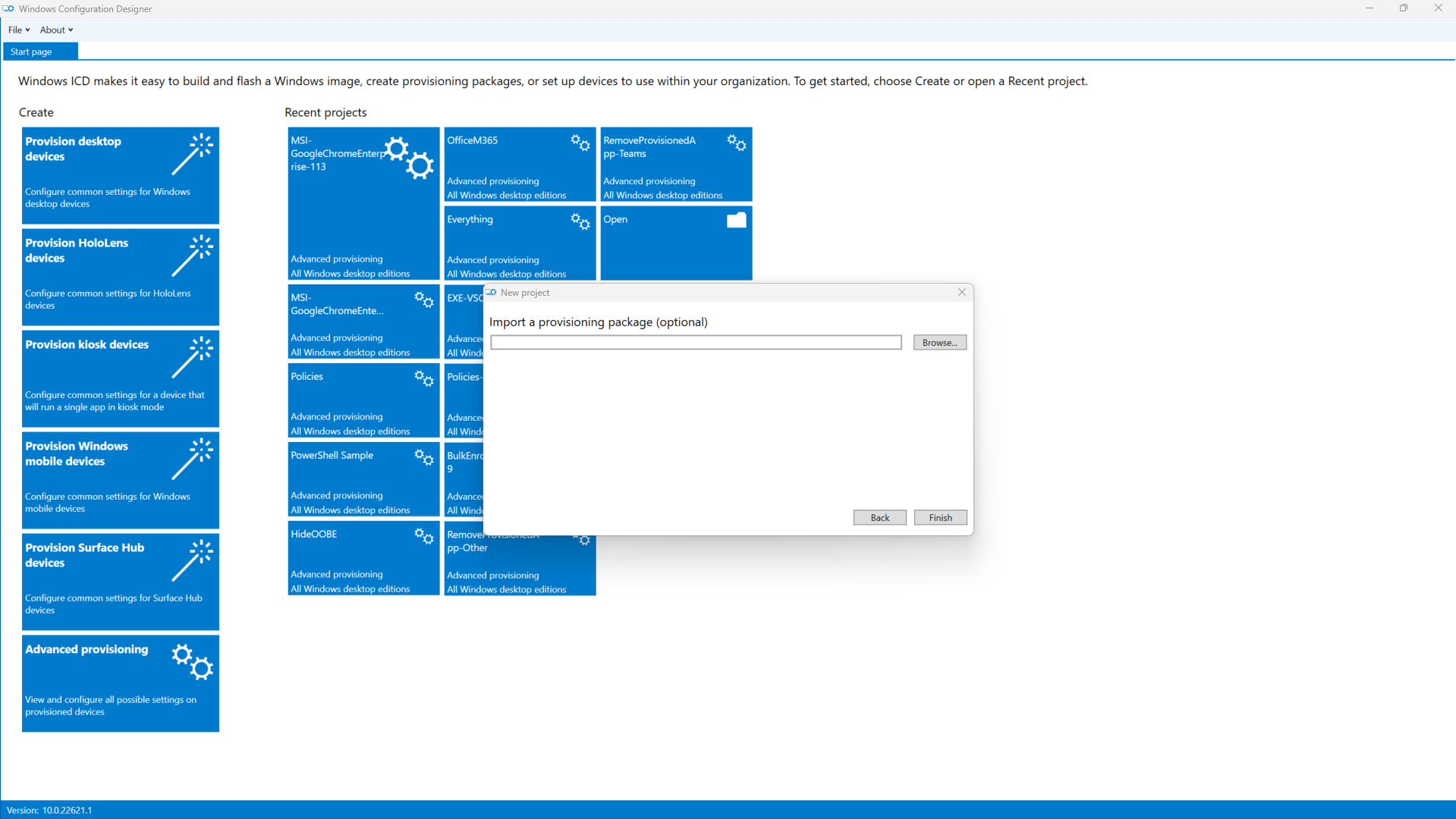
<figure><img src="/files/GT5PKUGKiTZB19huU1Gu" alt=""><figcaption><p>Press Finish</p></figcaption></figure>

## Runtime settings

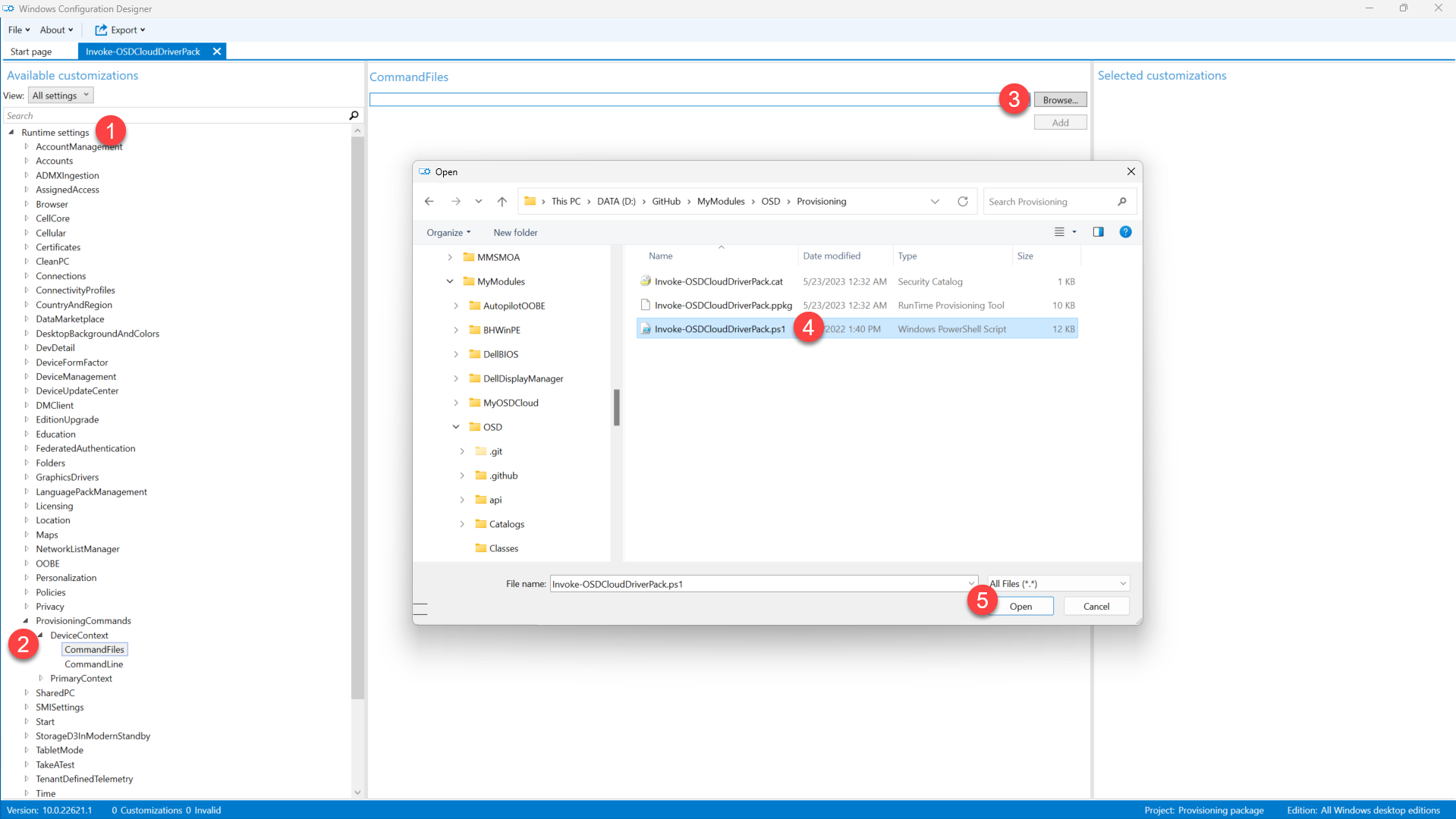
Complete the following steps:

1. Expand Runtime settings
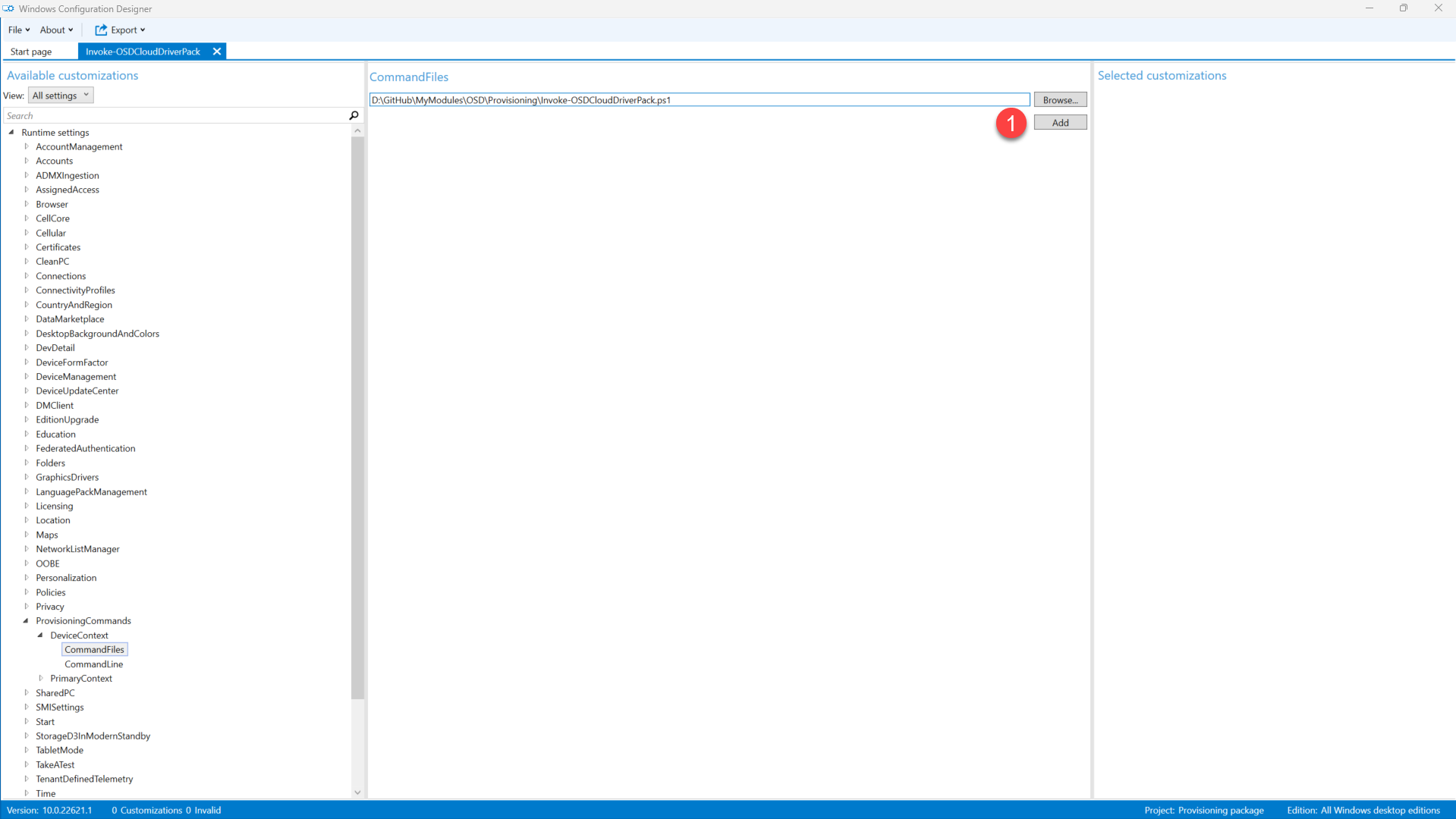
2. Expand ProvisoiningCommands, DeviceContext, CommandFiles
3. Press Browse
4. Find and select your PowerShell script
5. Press the Open button

<figure><img src="/files/LXI5DiEIvyG1GaJCWQpY" alt=""><figcaption></figcaption></figure>

Press the Add button

<figure><img src="/files/1ErVcYyqgnT6YRLfQZUX" alt=""><figcaption><p>Press the Add button</p></figcaption></figure>

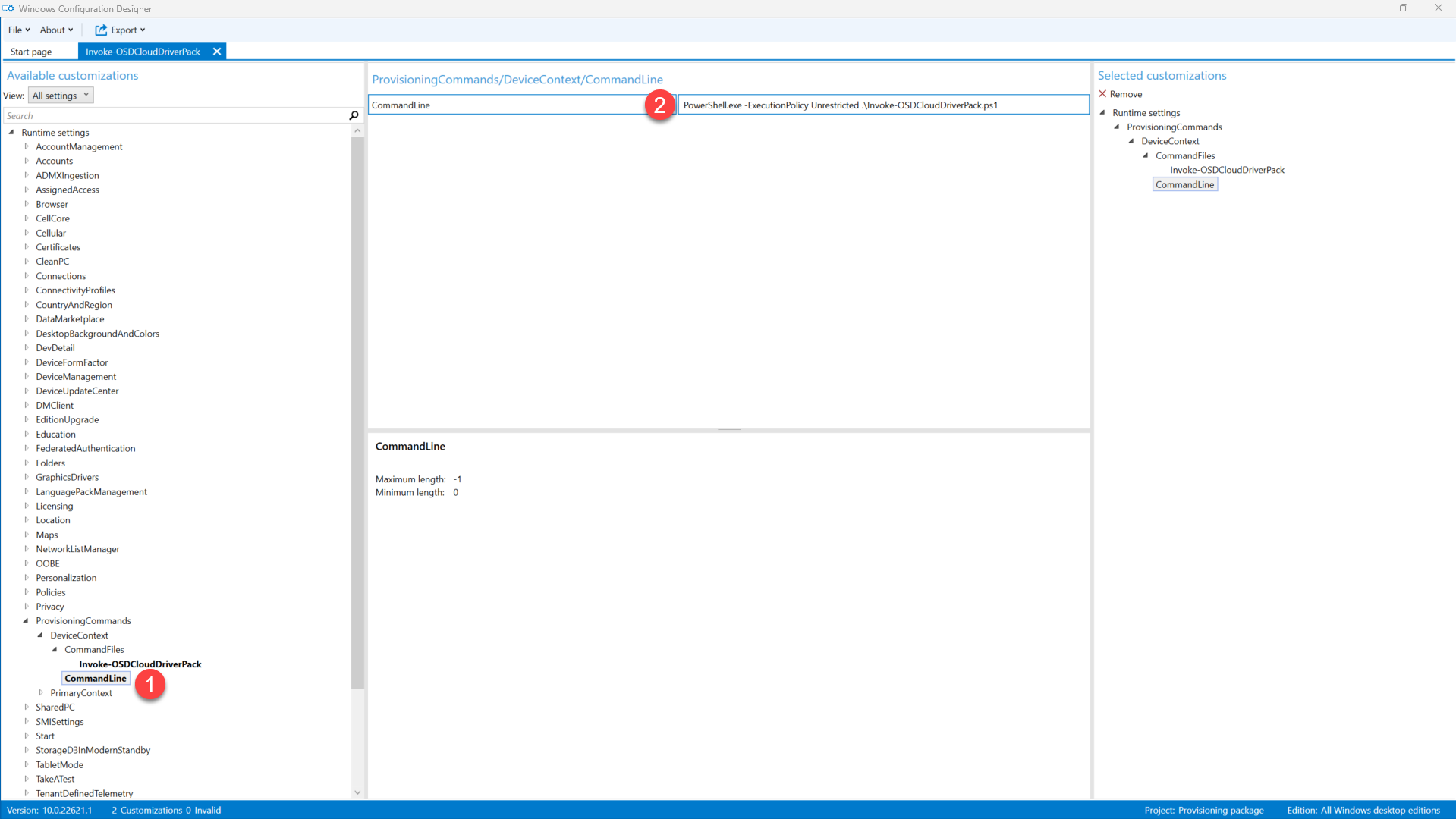
Complete the following steps:

1. Select CommandLine
2. Enter the following command line (change the name of the PowerShell script to your file name)

```
PowerShell.exe -ExecutionPolicy Unrestricted .\Invoke-OSDCloudDriverPack.ps1
```

<figure><img src="/files/poJFxfyLFxZm2VVZ2GCv" alt=""><figcaption></figcaption></figure>

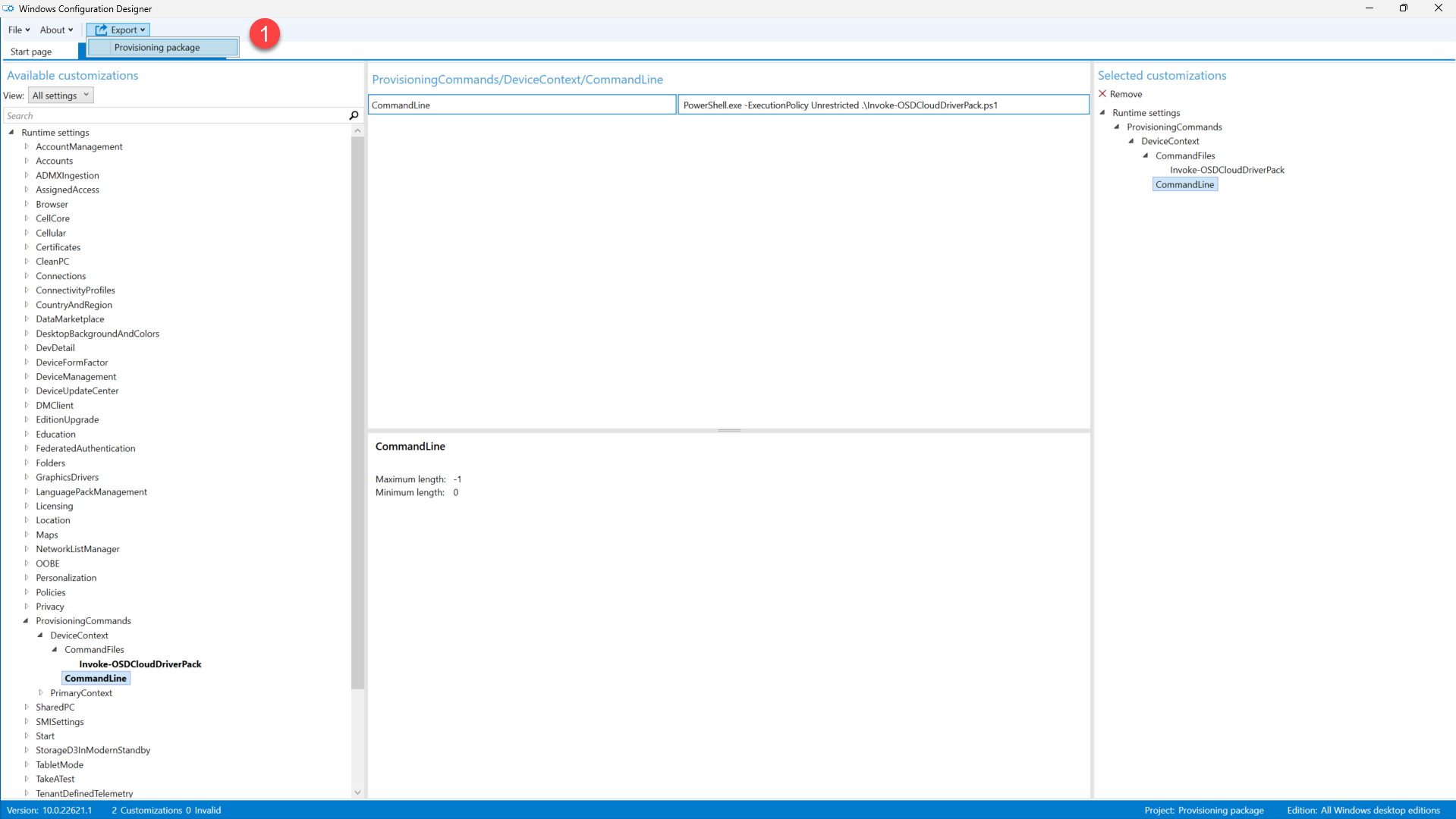
Press Export and Provisioning package

<figure><img src="/files/JcItep4jwqfafgo1yxMs" alt=""><figcaption></figcaption></figure>

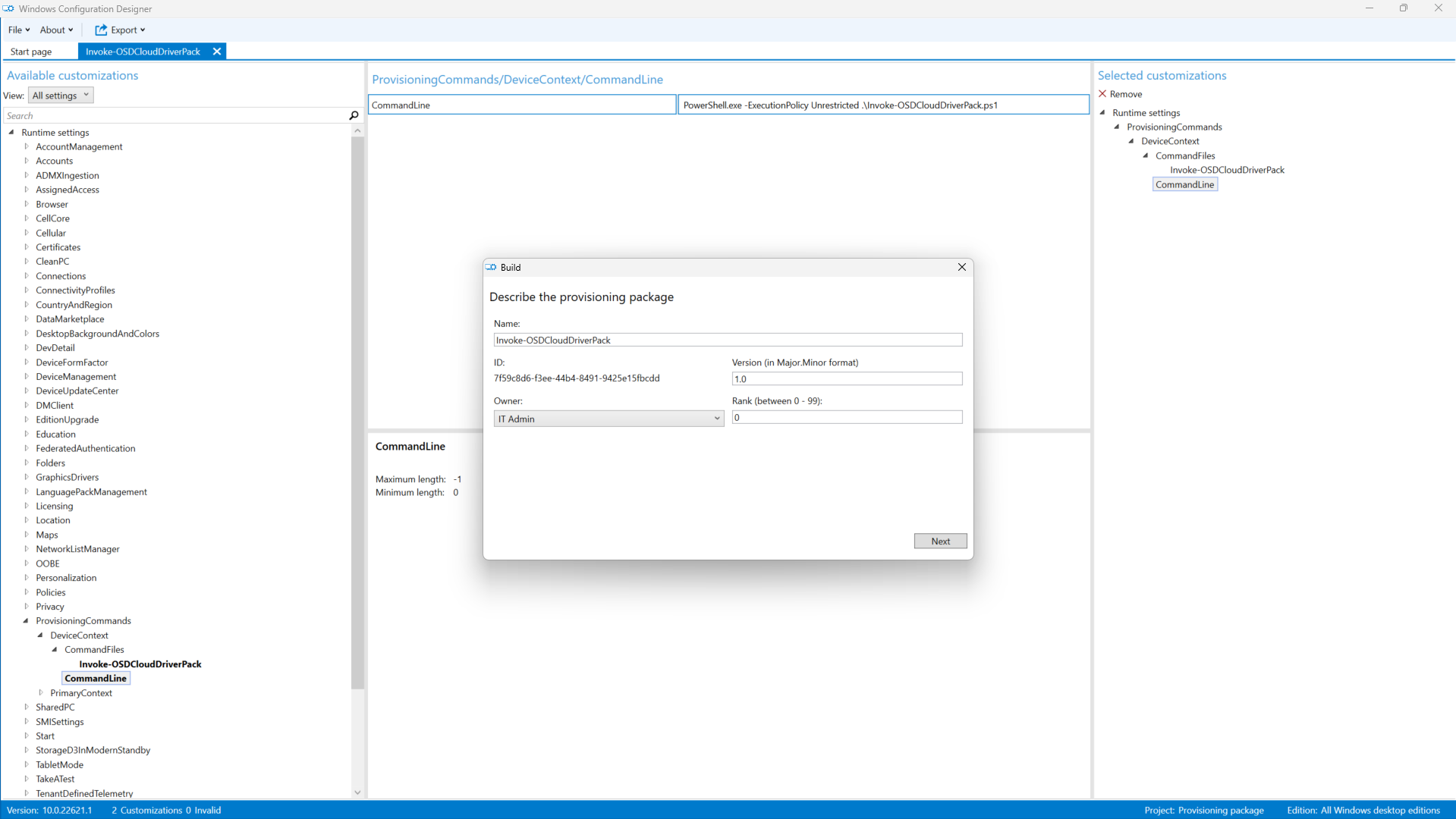
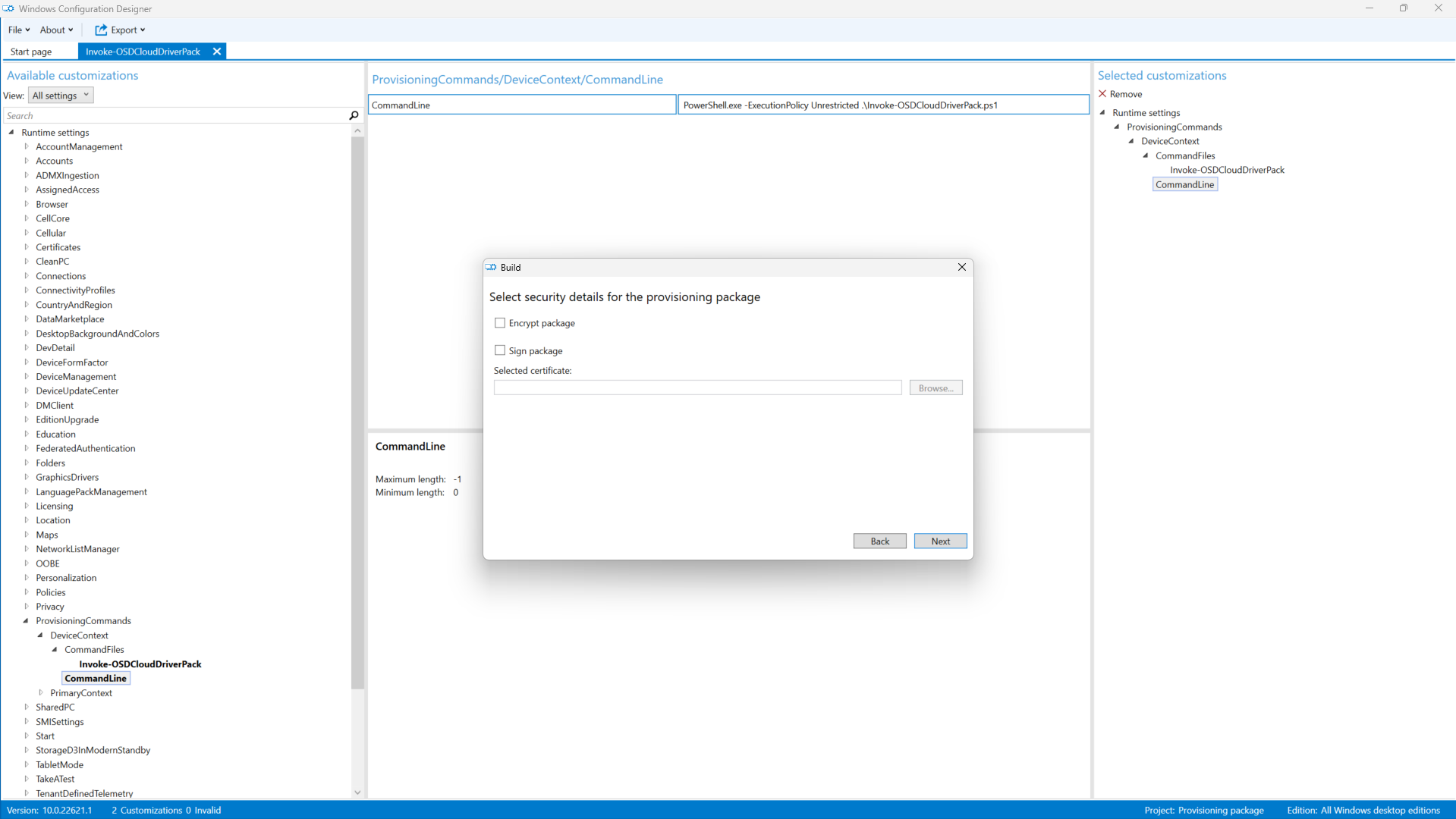
<figure><img src="/files/P1YoLuKBOs26XxaaDL2V" alt=""><figcaption><p>(1) Describe the provisioning package (2) Press the Next button</p></figcaption></figure>

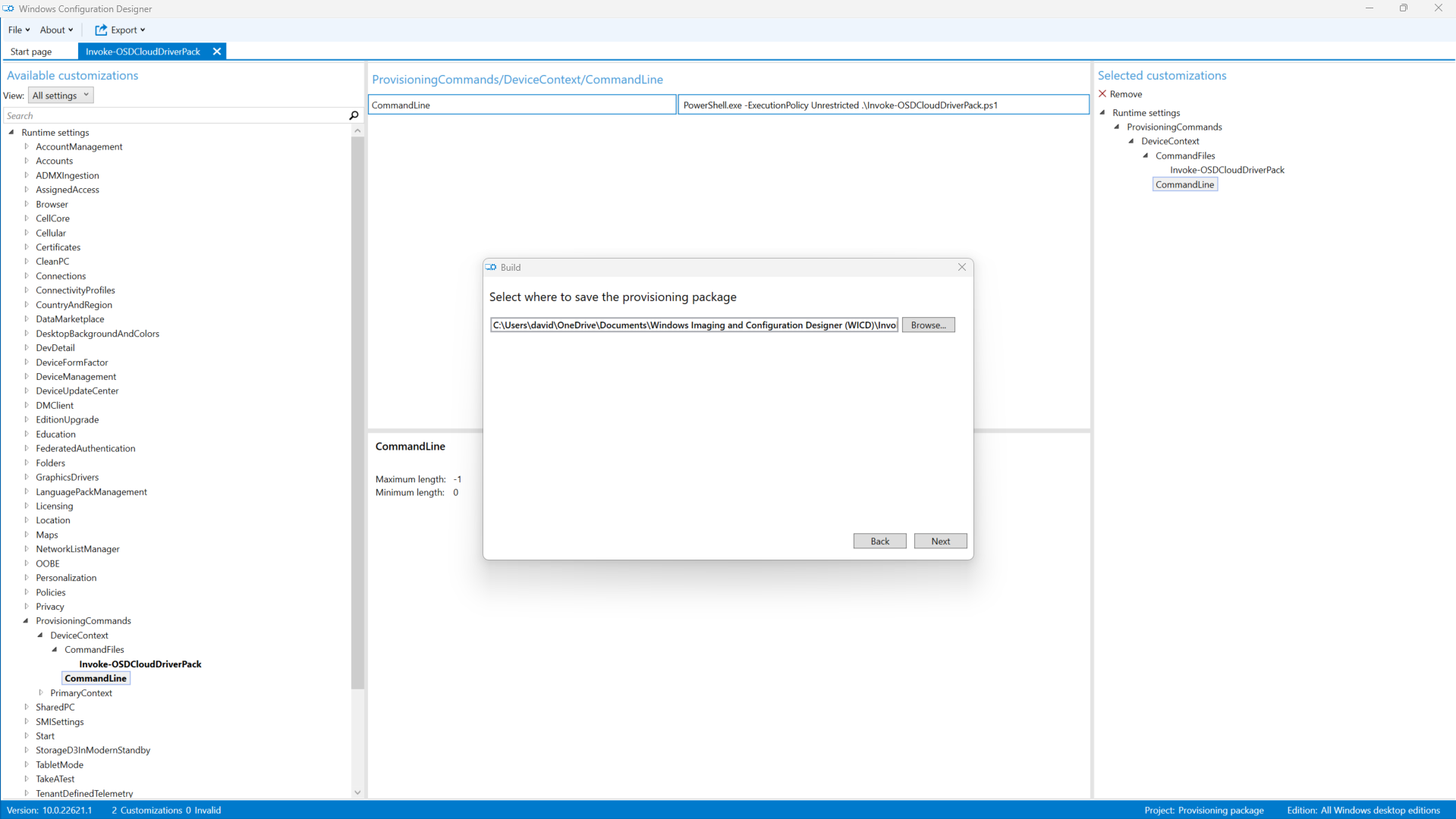
<figure><img src="/files/XMKrCY8b9bzh9ariltWj" alt=""><figcaption><p>Press the Next button</p></figcaption></figure>

<figure><img src="/files/7h9l9F17rjGZ7zf4TWn7" alt=""><figcaption><p>Press the Next button</p></figcaption></figure>

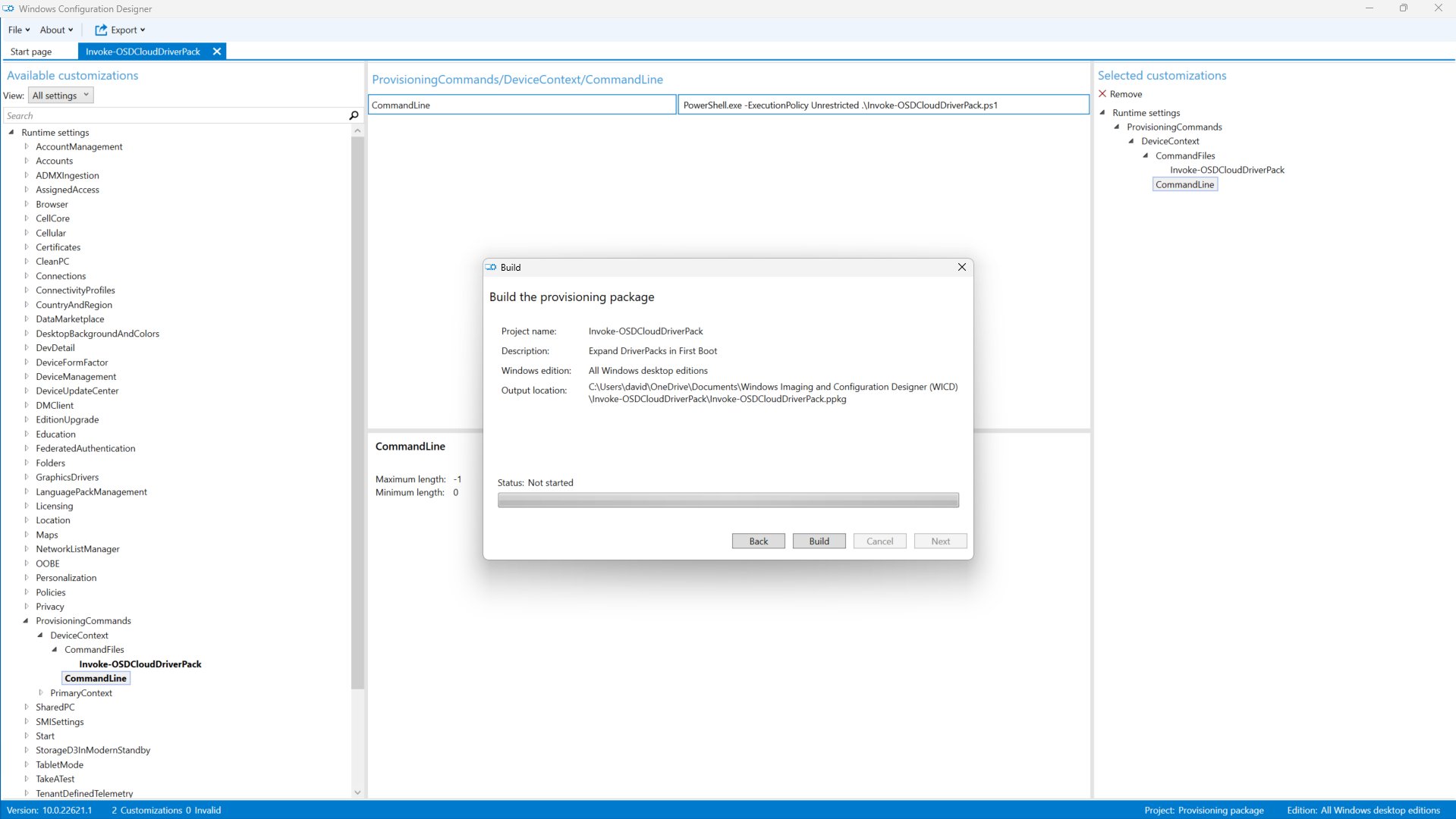
<figure><img src="/files/vnZ0XZaMrZeMktXyoN4i" alt=""><figcaption><p>Press the Build button</p></figcaption></figure>

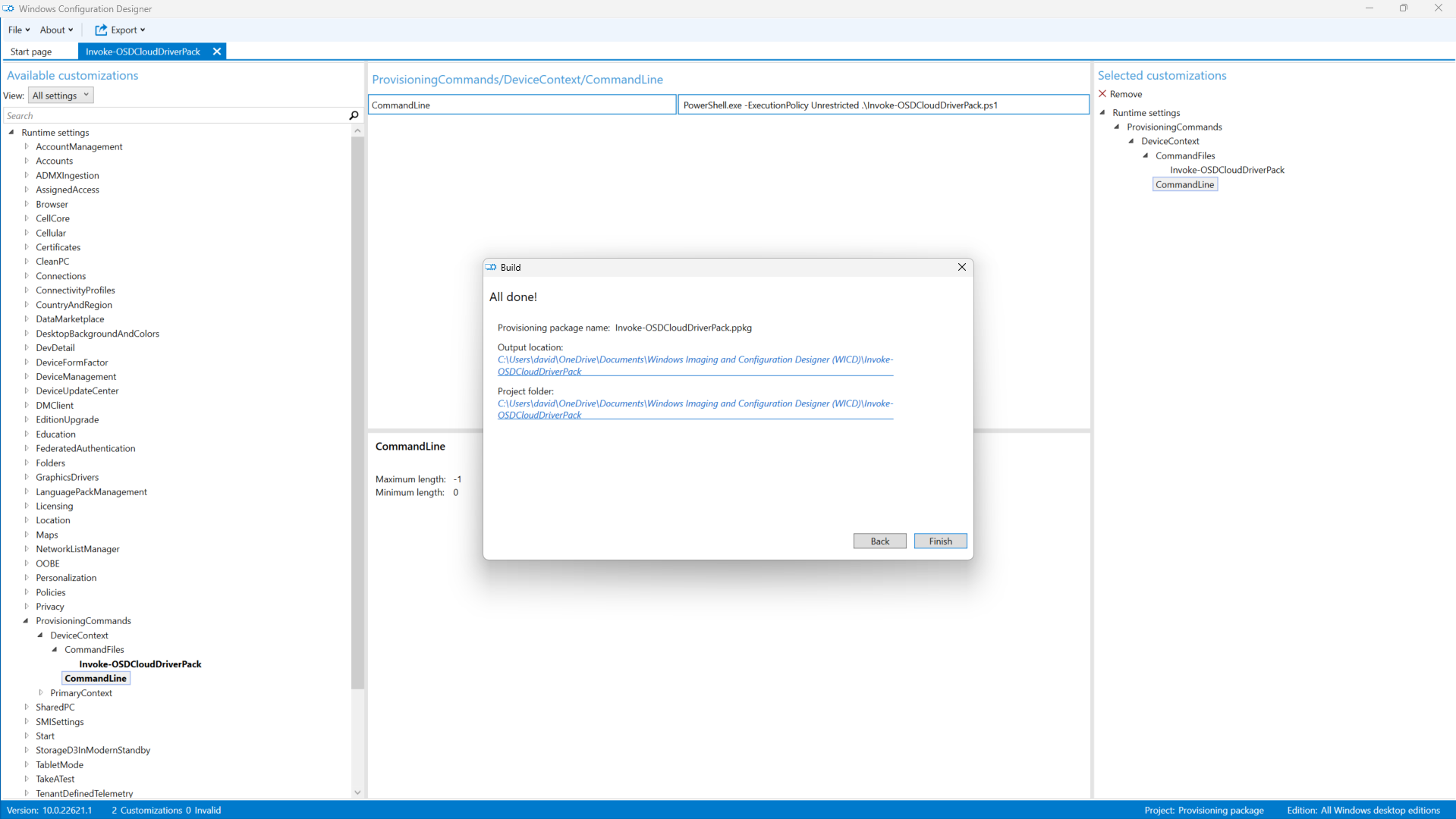
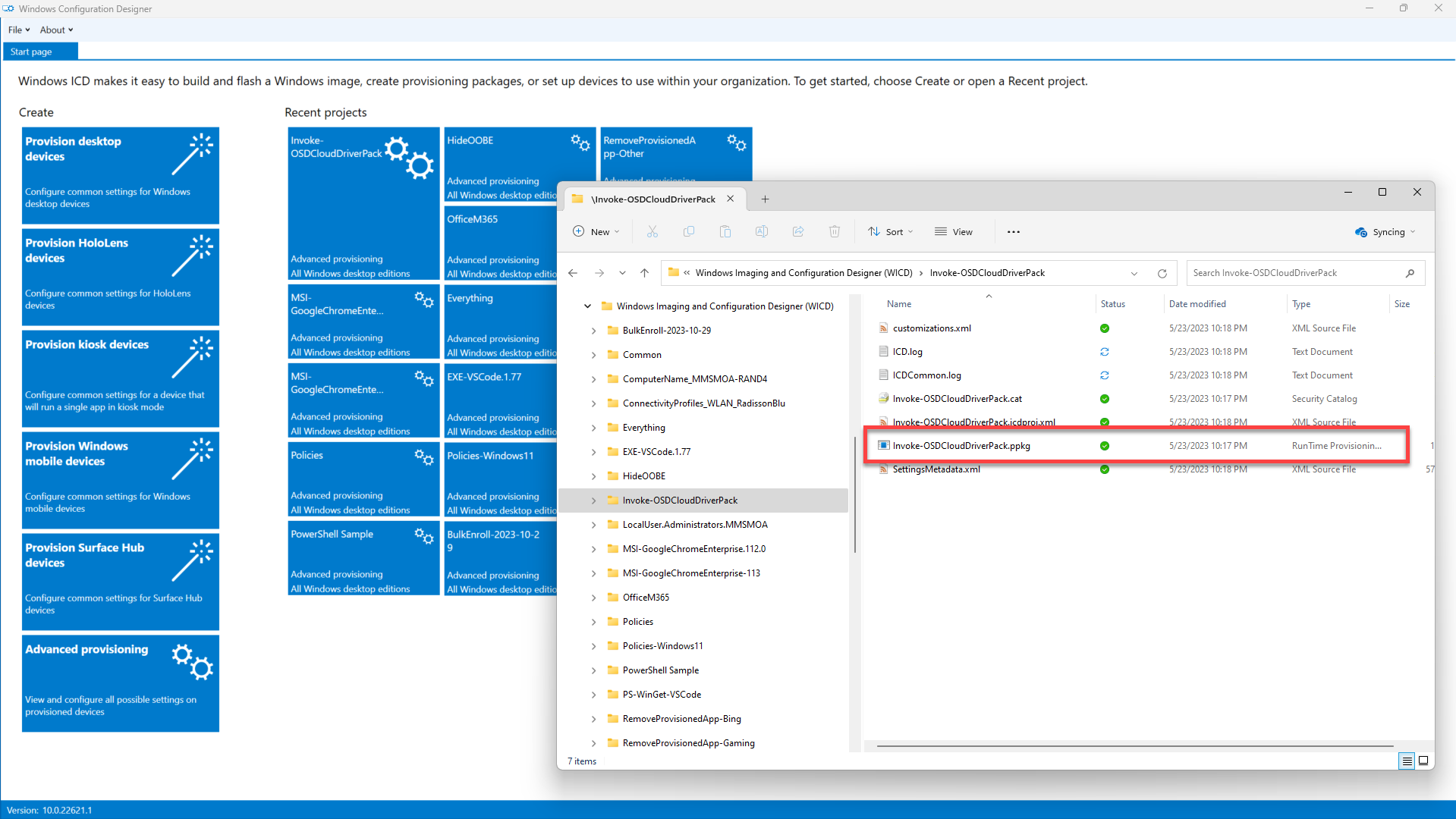
<figure><img src="/files/Tix4JLP6l6mokqmbqzVD" alt=""><figcaption><p>(1) Click on the Project folder link (2) Press the Finish button</p></figcaption></figure>

<figure><img src="/files/iMG7YSxc4OHsGCvlKsrW" alt=""><figcaption><p>Complete Provisioning Package</p></figcaption></figure>


---

# Agent Instructions: Querying This Documentation

If you need additional information that is not directly available in this page, you can query the documentation dynamically by asking a question.

Perform an HTTP GET request on the current page URL with the `ask` query parameter:

```
GET https://www.osdcloud.com/osdcloud-v1/osdcloud-automate/provisioning/powershell-script-ppkg.md?ask=<question>
```

The question should be specific, self-contained, and written in natural language.
The response will contain a direct answer to the question and relevant excerpts and sources from the documentation.

Use this mechanism when the answer is not explicitly present in the current page, you need clarification or additional context, or you want to retrieve related documentation sections.