> For the complete documentation index, see [llms.txt](https://www.osdcloud.com/llms.txt). Markdown versions of documentation pages are available by appending `.md` to page URLs; this page is available as [Markdown](https://www.osdcloud.com/osdcloud-v1/osdcloud/setup/osdcloud-vm/new-osdcloudvm.md).
# New-OSDCloudVM
OSD 23.5.28.1+ Updated May 29, 2023
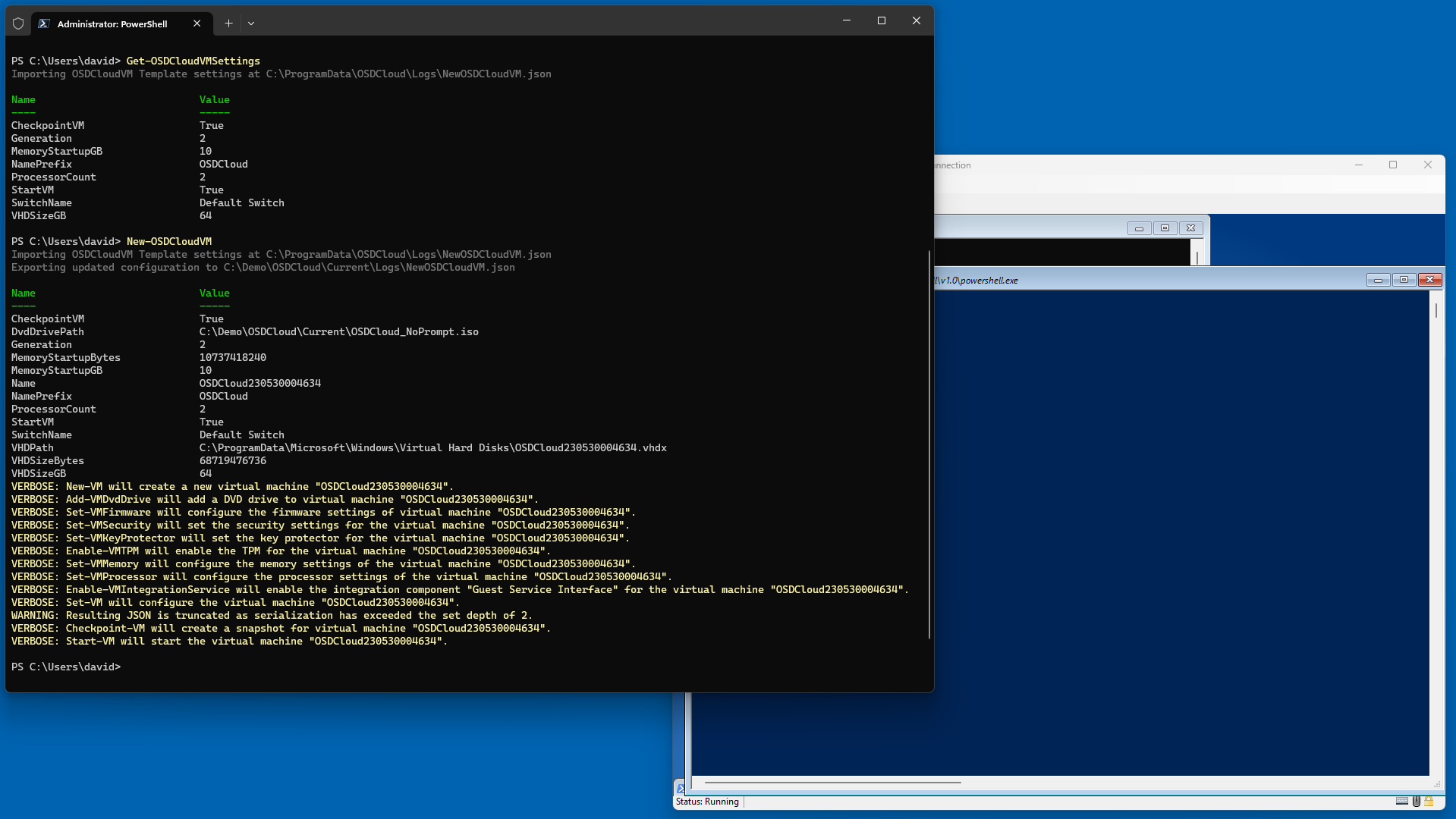
You can customize the defaults of the Virtual Machine by using the parameters of this function. When you change any of the parameters, it will save the configuration in the OSDCloud Workspace. Every subsequent OSDCloud VM that you create in the same OSDCloud Workspace will use these settings. In this example I have set my OSDCloud VM Settings (Template) with the following configuration
## First Run
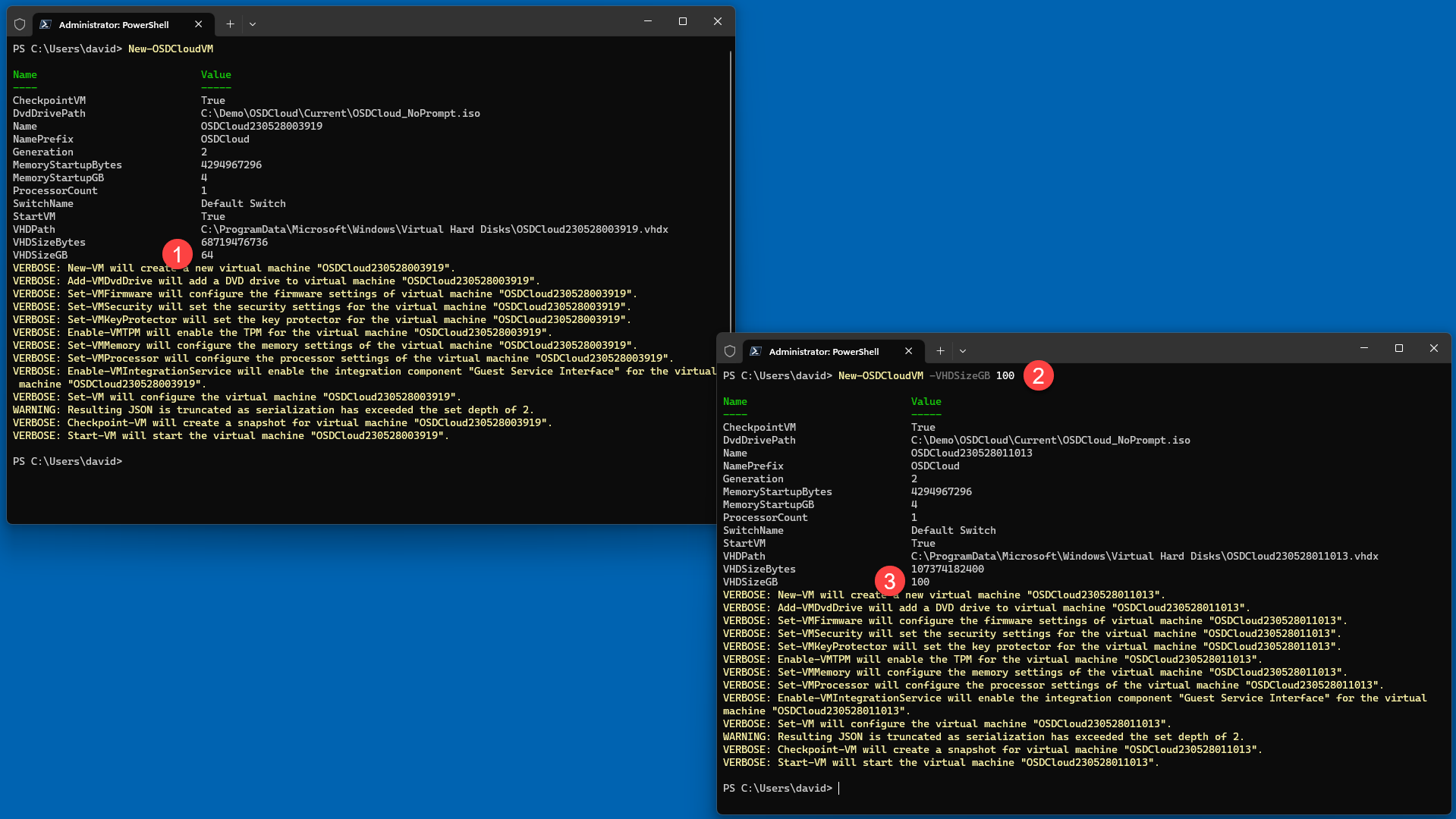
When I run **`New-OSDCloudVM`**, it will inherit my OSDCloud VM Settings that were created in my OSDCloud Template by **`Set-OSDCloudVMSettings`**
## SwitchName
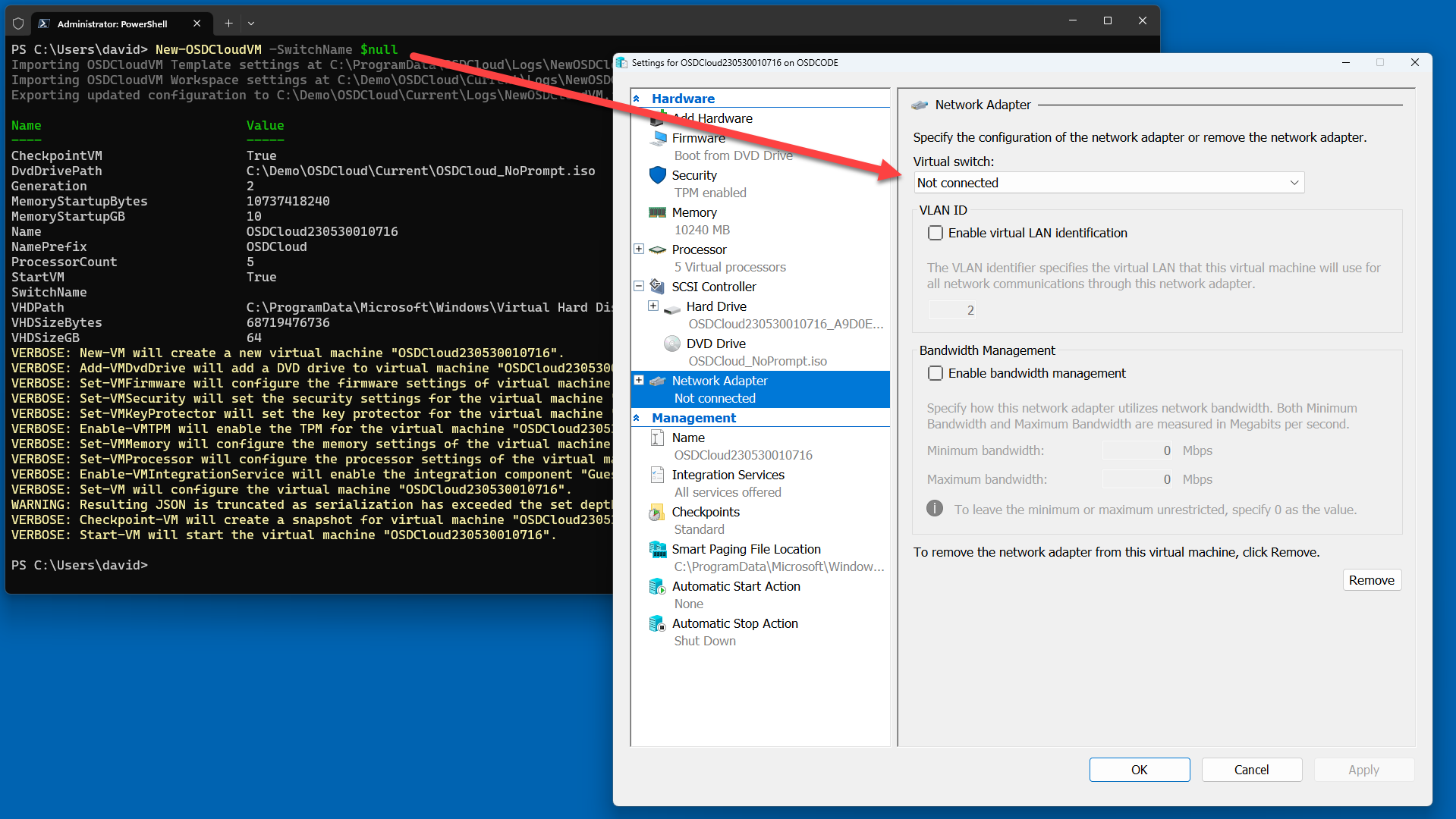
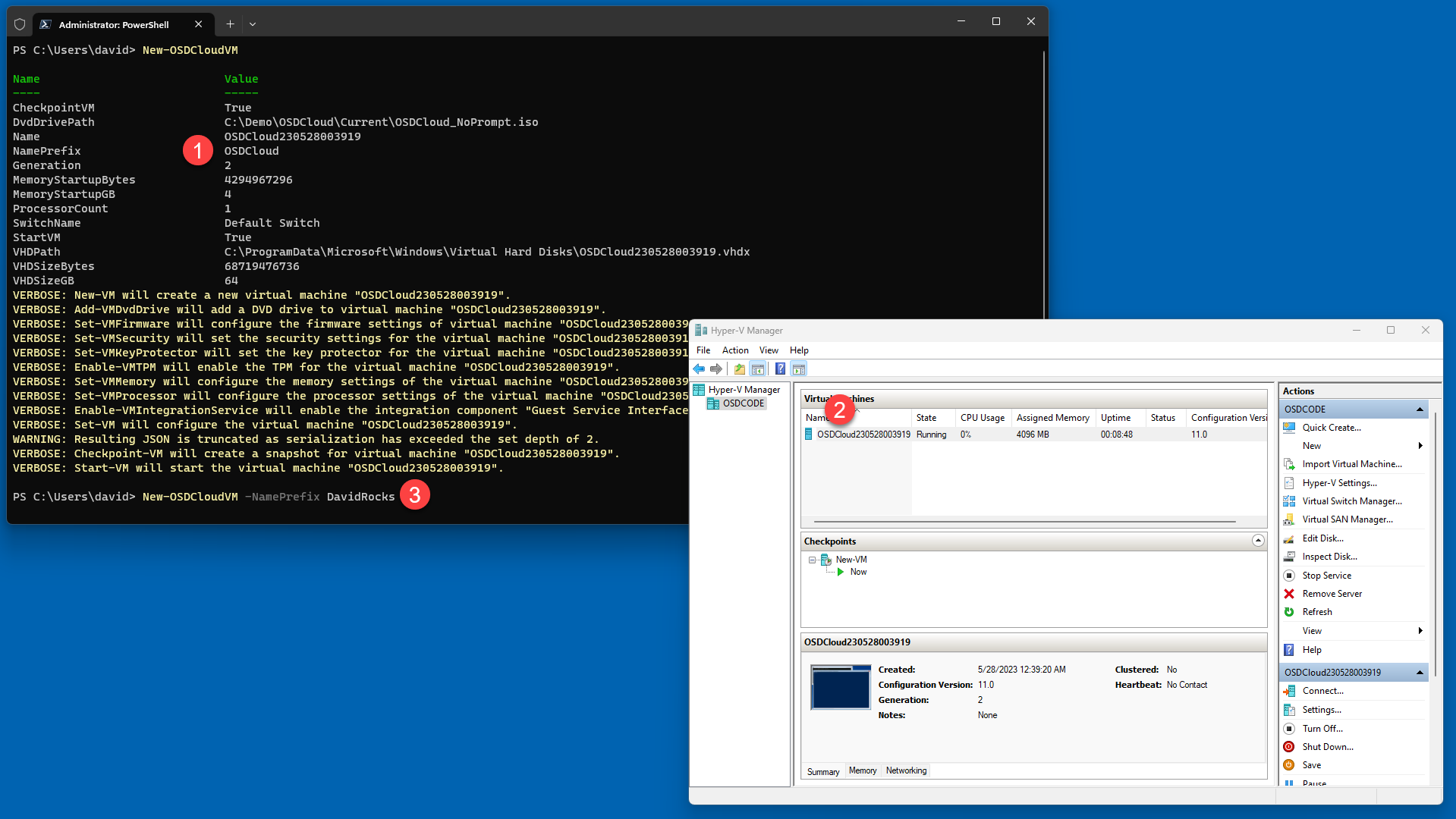
This should absolutely be one of the first things you set in your Virtual Machine. Ideally it should be inherited from Set-OSDCloudVMSettings
And yes, you will be able to Tab Complete through your available Virtual Switches
If you need your VM set to 'Not connected', just use a **`$null`** value
## StartVM
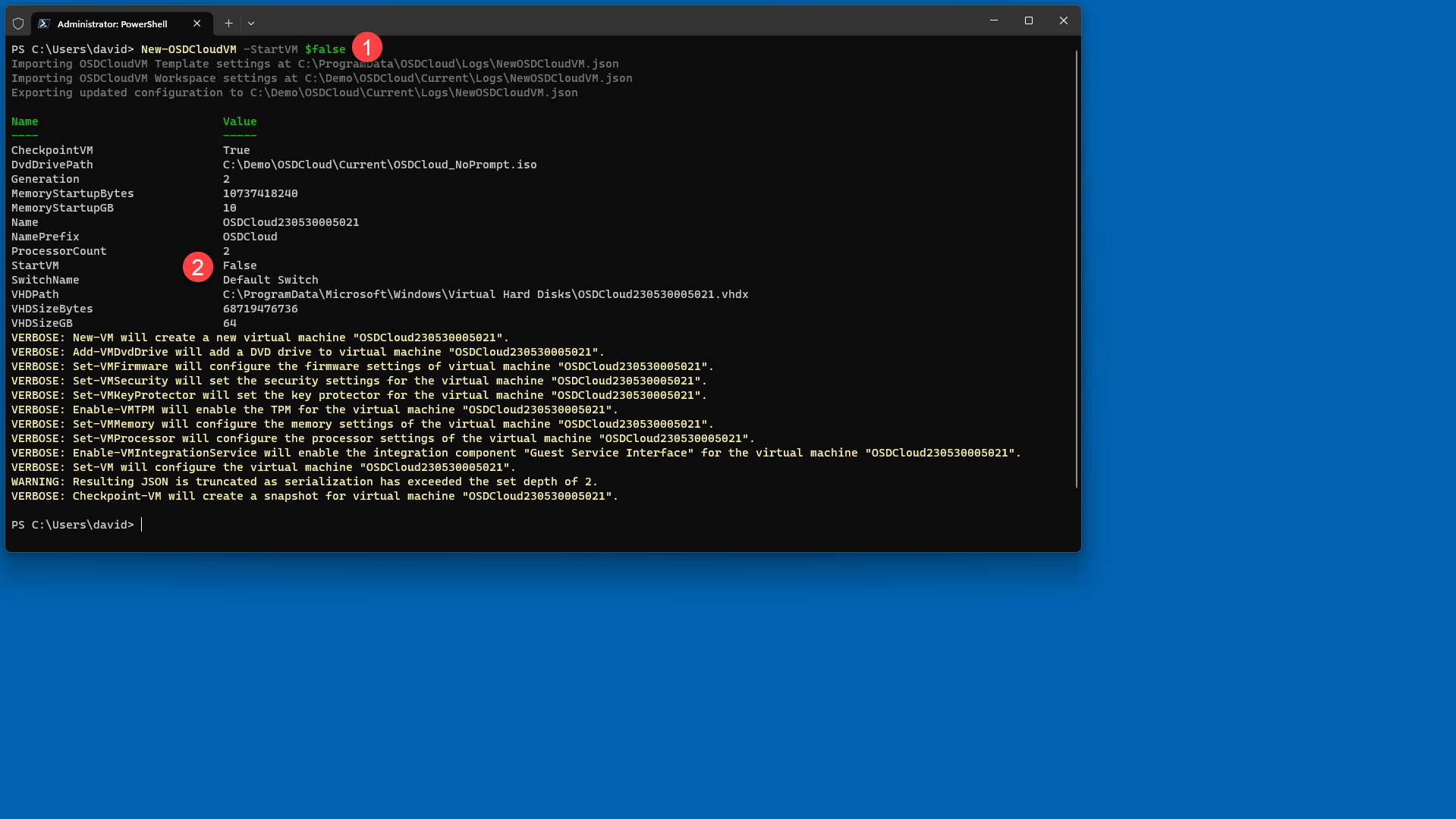
By default, OSDCloud VM will startup automatically. I can prevent this from happening by using this parameter and setting the value to **`$false`**
## CheckpointVM
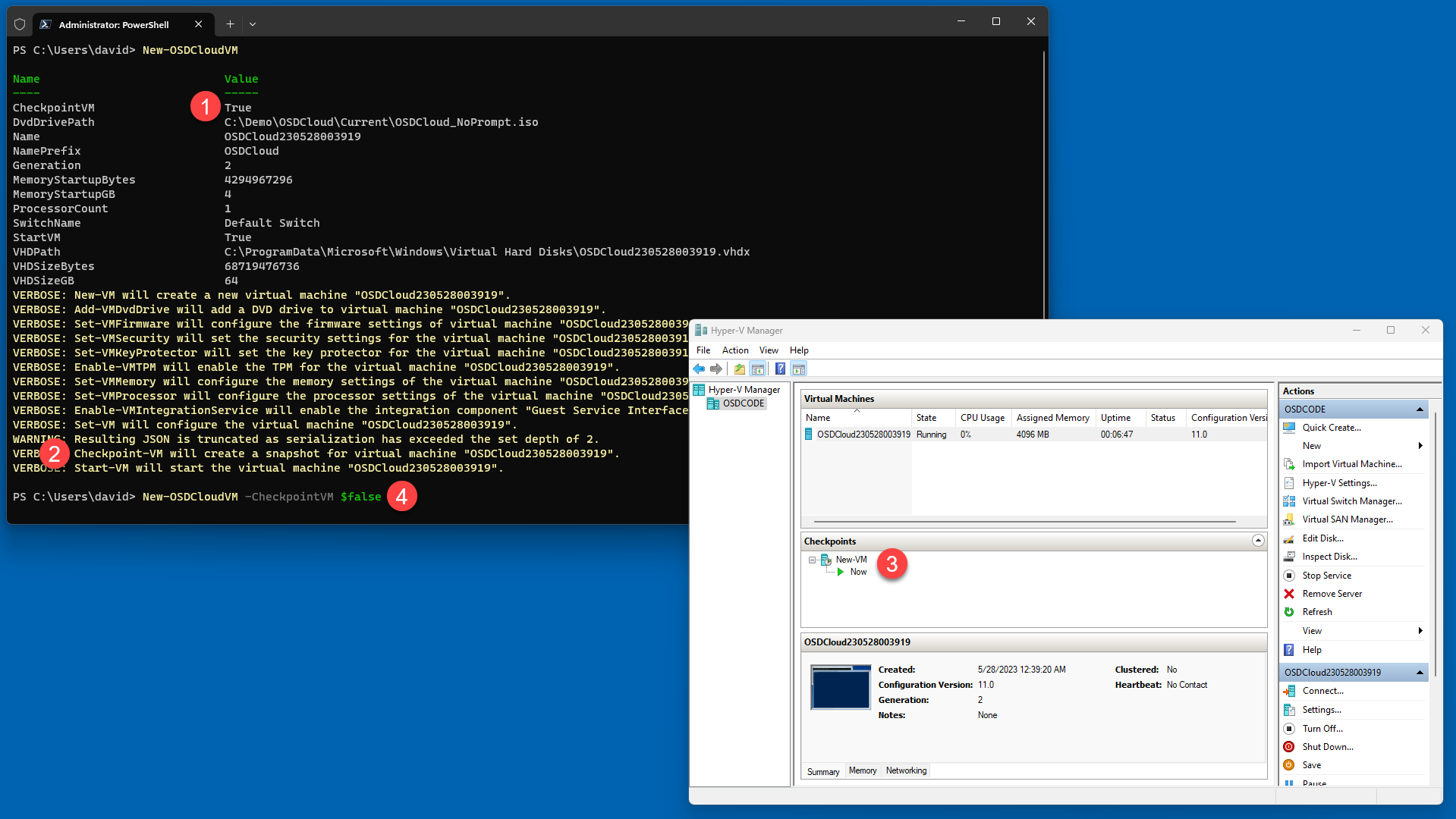
This value determines if a New VM Checkpoint will be created or not, which is incredibly helpful if you need to reset the VM to a clean state. You can change this at the command line as well
## NamePrefix
This Prefix is given to the Virtual Machine name created with **`New-OSDCloudVM`**. By default, this is **OSDCloud**, but you can also configure this at the command line
## Generation
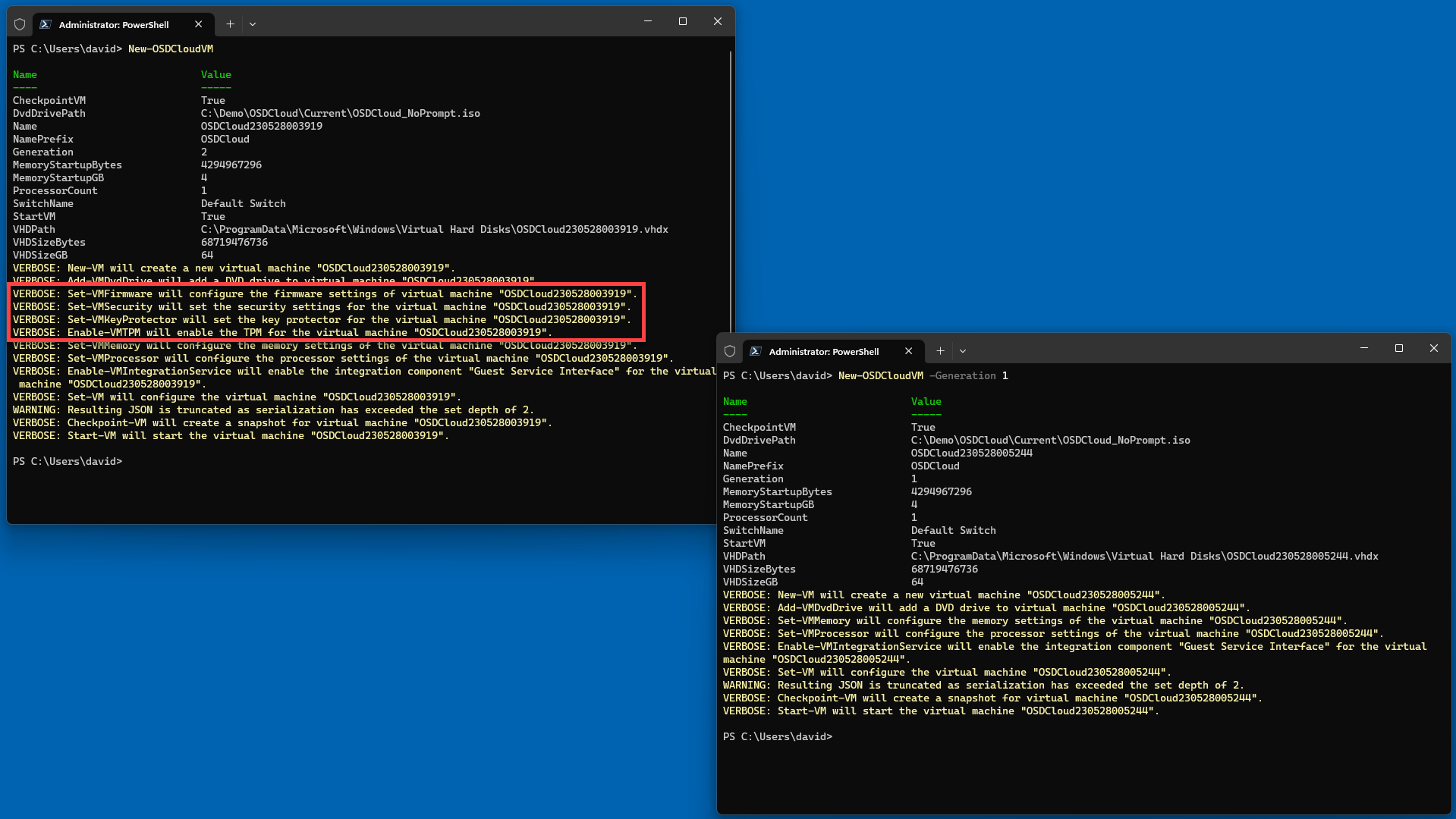
By default, the VM will be created as Generation 2, which is UEFI. But if you want to live in a world of pain, you can create a Generation 1 Virtual Machine.
{% hint style="danger" %}
**Seriously don't do this. OSDCloud will partition your disk as GPT, which won't boot your Generation 1 VM. This feature was added for testing only. I will not address any questions about this parameter, so you're on your own here.**
{% endhint %}
## MemoryStartupGB
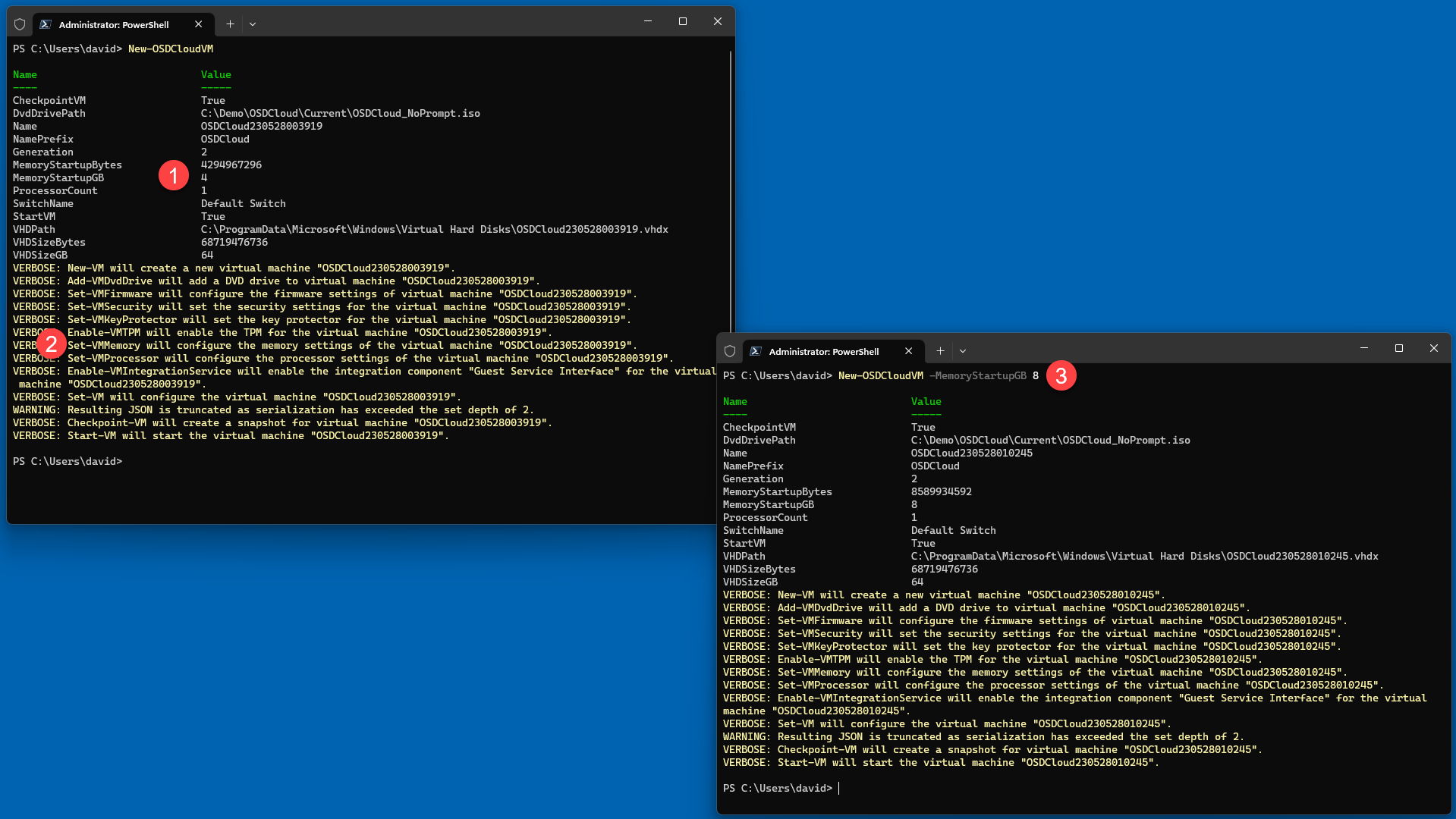
The minimum requirements for Windows 11 are 4GB, but I've seen some things not work right, so I suggest bumping this up a little
## ProcessorCount
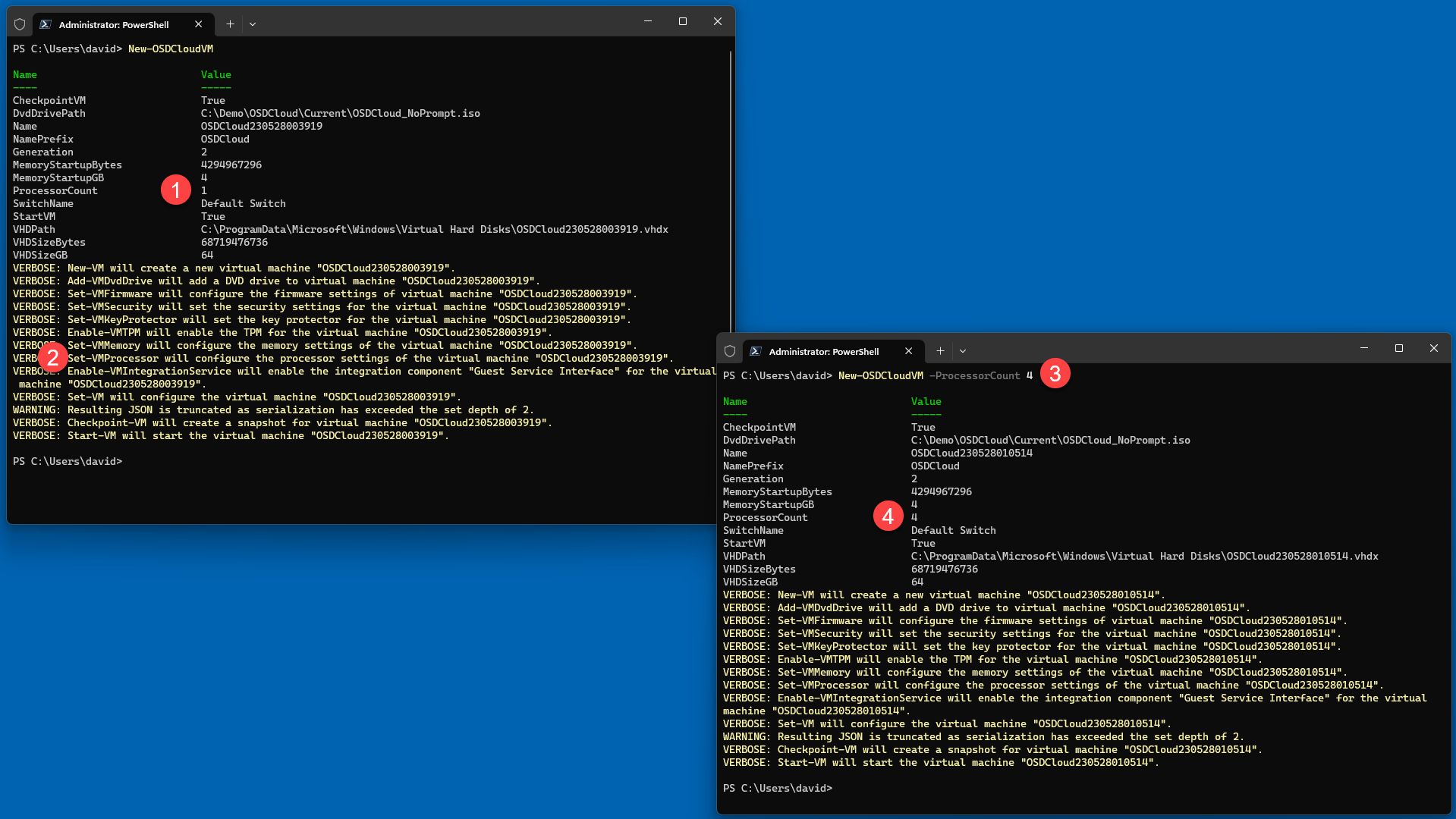
I recommend setting this to at least 2, but that's your call.
If you are curious as to how many processors you can use at the same time across all Virtual Machines ...
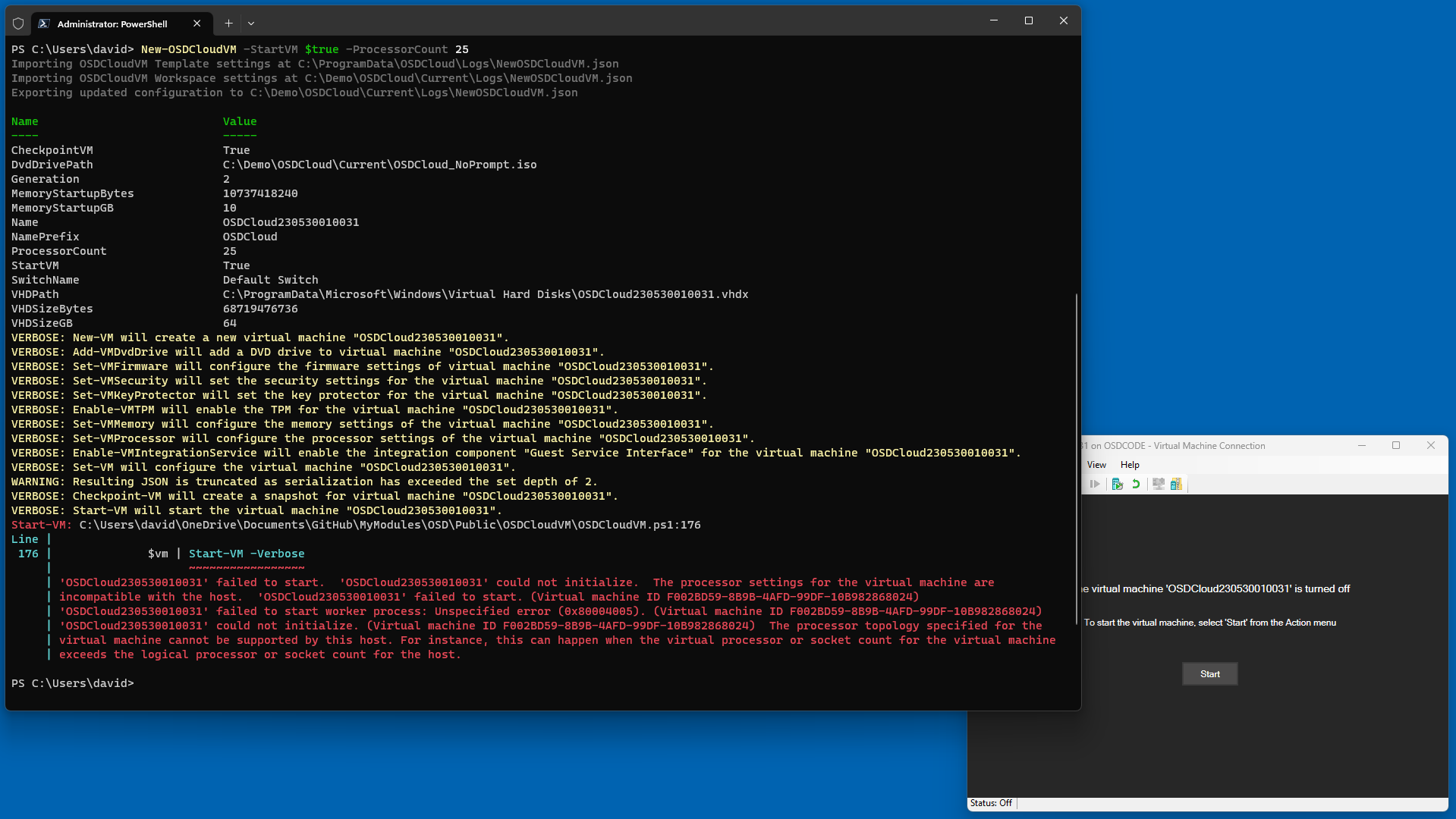
Can you create a Virtual Machine with a Processor Count greater than the number of Processors? Yes you can, but you'll have problems getting it to start
## VHDSizeGB
Finally feel free to give your Virtual Machine a few extra GB's of space. Enjoy!
## Final Words
As a reminder, you can reset things back to default if you need to
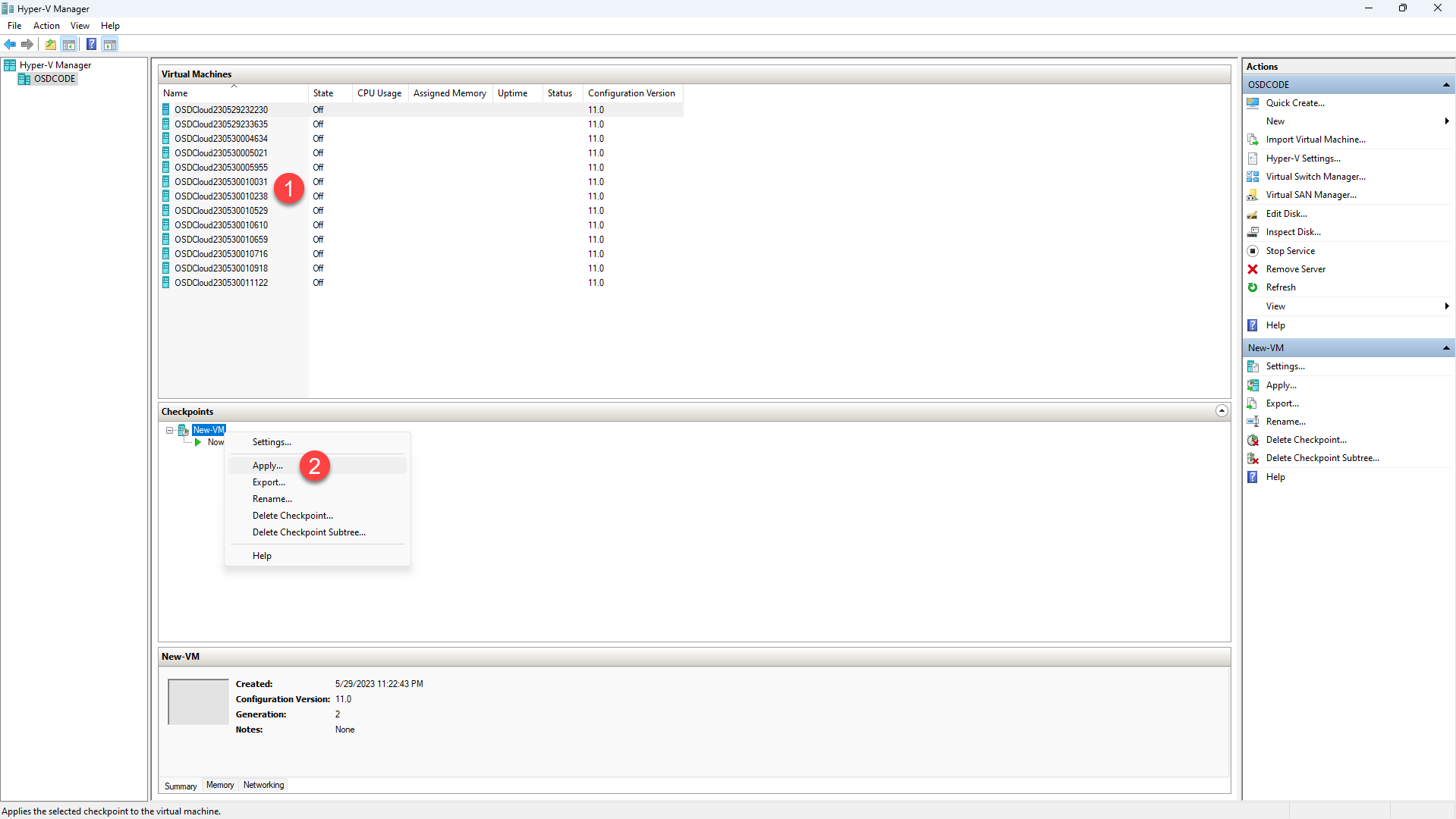
A TimeStamp is used in the Virtual Machine Name so you should always be able to quickly identify the last one you created. Finally, if you have a failed deployment, you can Apply the initial Checkpoint to reset the Virtual Machine to a newly created state
---
# Agent Instructions
This documentation is published with GitBook. GitBook is the documentation platform designed so that both humans and AI agents can read, navigate, and reason over technical content effectively. Learn more at gitbook.com.
## Querying This Documentation
If you need additional information that is not directly available in this page, you can query the documentation dynamically by asking a question.
Perform an HTTP GET request on the current page URL with the `ask` query parameter, and the optional `goal` query parameter:
```
GET https://www.osdcloud.com/osdcloud-v1/osdcloud/setup/osdcloud-vm/new-osdcloudvm.md?ask=&goal=
```
`ask` is the immediate question: it should be specific, self-contained, and written in natural language.
`goal` is optional and describes the broader end goal you are ultimately trying to accomplish on behalf of the user. GitBook uses it to tailor the answer towards what is most useful for that goal.
The response will contain a direct answer to the question and relevant excerpts and sources from the documentation.
Use this mechanism when the answer is not explicitly present in the current page, you need clarification or additional context, or you want to retrieve related documentation sections.